
Connecting AI tools with MCP
On this page
- What your AI tool can access
- Before you start
- How to connect an AI tool
- Step 1. Open MCP
- Step 2. Click Connect another tool
- Step 3. Choose your AI tool
- Step 4. Copy the link
- Step 5. Add it in your AI tool
- Step 6. Sign in and allow access
- Setup steps for each AI tool
- Claude
- ChatGPT
- Gemini
- Perplexity
- Grok
- Cursor IDE
- Visual Studio Code
- Devin
- How to ask questions
- How to manage your connections
- Troubleshooting
- Frequently asked questions
TMV MCP lets AI tools such as Claude, ChatGPT and Gemini answer questions using your Track My Visibility data. You ask in plain English, and your AI tool pulls the right data from your account, such as your visibility, prompts, competitors and citation sources.
MCP stands for Model Context Protocol. It's an open standard that lets AI tools use outside data, so you can analyze your AI visibility without leaving the AI tool you already work in.
What your AI tool can access#
Your AI tool sees the same data as your dashboard:
- Visibility summary: how often your brand appears, where it ranks and how it's described.
- Prompts and AI responses: every tracked prompt and each AI model's full answer.
- Competitors and industry ranking: your tracked competitors and where each brand ranks.
- Citation sources: the domains and pages AI models cite.
- Models, topics and tags: for filtering any question.
Your AI tool can also add or delete prompts and add competitors. Everything else is read-only.
Before you start#
- MCP is included in paid plans. You can also test it during your trial.
- Some AI tools only allow custom MCP connections on their paid plans.
- You'll need this server URL:
https://apiv1.trackmyvisibility.com/mcp
How to connect an AI tool#
Step 1. Open MCP#
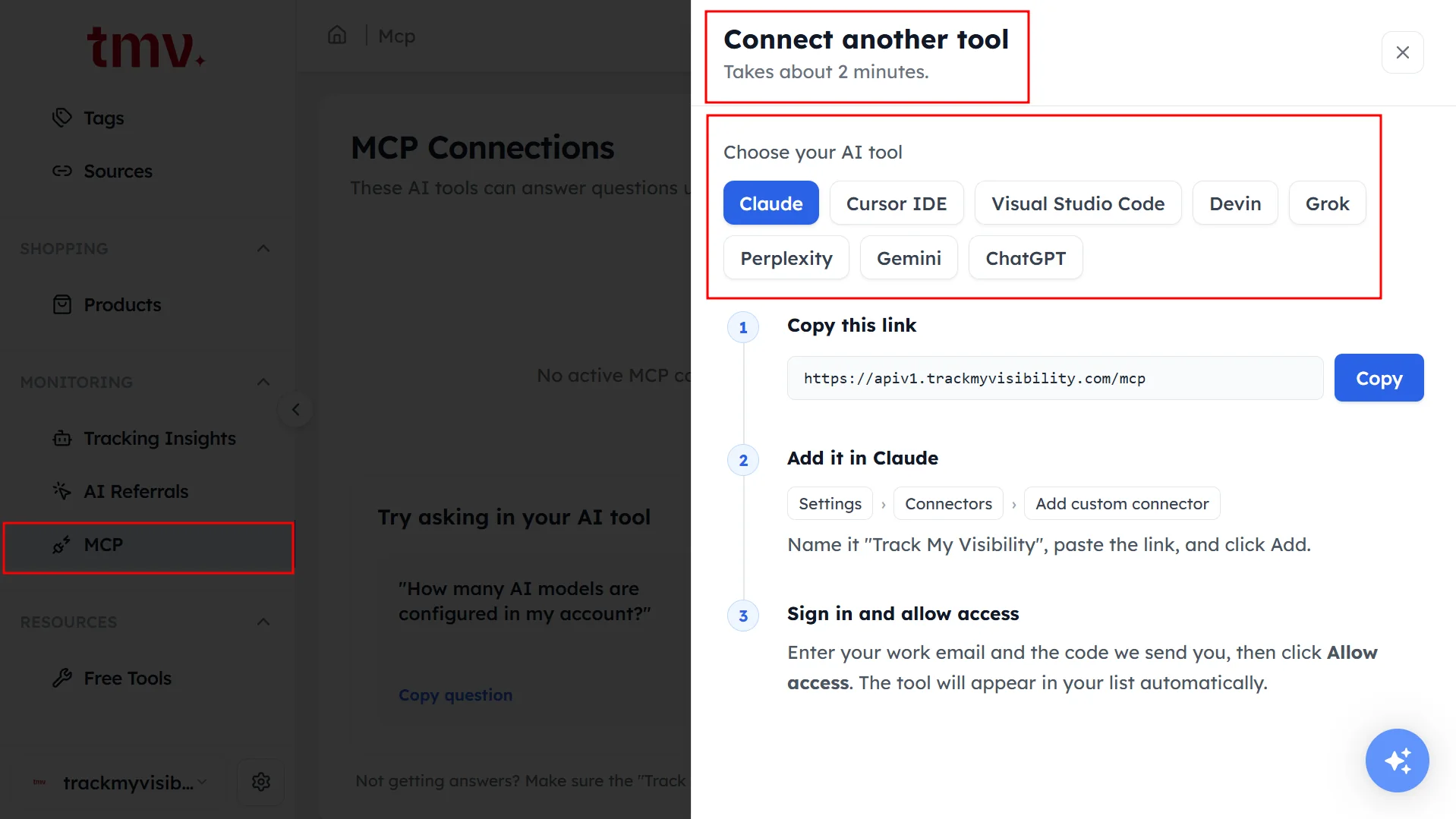
Click MCP under Monitoring in the left sidebar.
Step 2. Click Connect another tool#
A panel opens. Setup takes about two minutes.
Step 3. Choose your AI tool#
Select Claude, Cursor IDE, Visual Studio Code, Devin, Grok, Perplexity, Gemini or ChatGPT. The panel shows the steps for that tool. A Connected label shows next to tools you've already connected.
Step 4. Copy the link#
Click Copy next to the server URL.
Step 5. Add it in your AI tool#
Follow the steps for your tool in the next section.
Step 6. Sign in and allow access#
Your AI tool asks you to sign in. Enter your work email and the code we send you, then click Allow access. The tool then appears in your MCP Connections list.
Setup steps for each AI tool#
Claude#
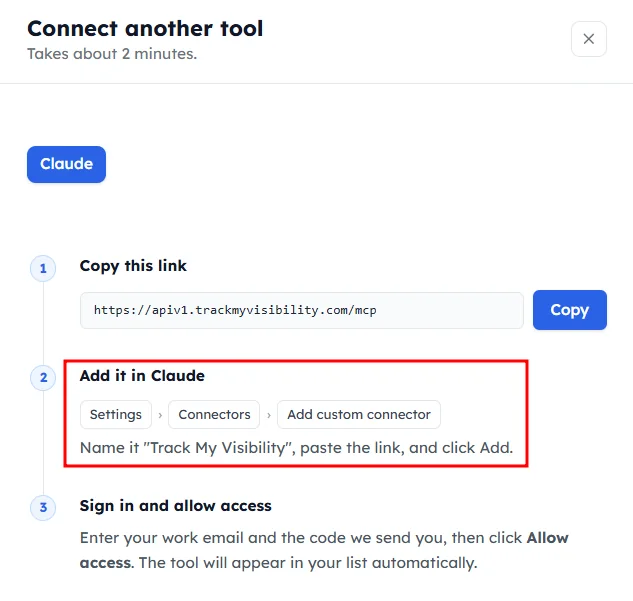
- Go to Settings → Connectors → Add custom connector.
- Name it Track My Visibility and paste the link.
- Click Add.
ChatGPT#
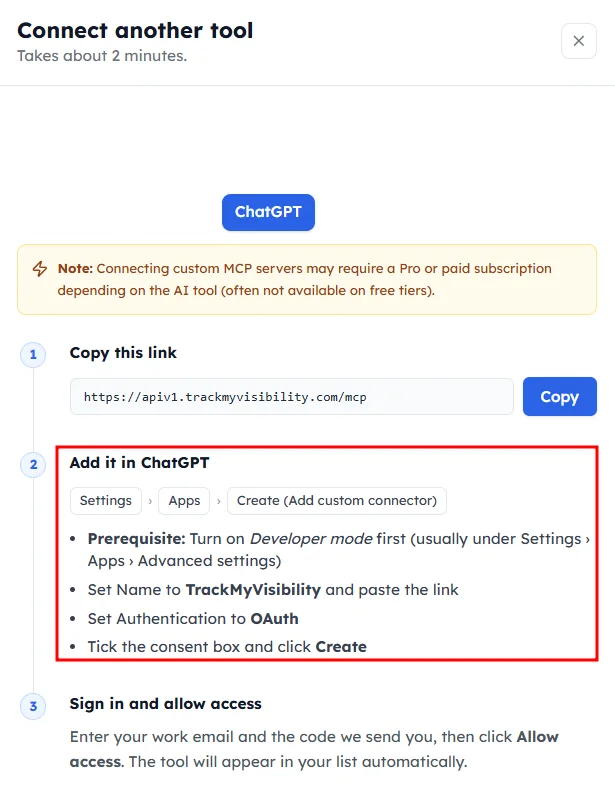
- Turn on Developer mode first. It's usually under Settings, then Apps, then Advanced settings.
- Go to Settings → Apps → Create.
- Set the name to TrackMyVisibility and paste the link.
- Set Authentication to OAuth.
- Tick the consent box and click Create.
Gemini#
- Go to Spark → Connected Apps → Custom apps for Spark → Add a custom app.
- Paste the link into MCP Server URL.
- Click Next.
Perplexity#
- Go to Settings → Connectors → + Custom connector → Remote.
- Set the name to TrackMyVisibility and paste the link into MCP server URL.
- Open Advanced and set Authentication to OAuth.
- Set Transport to Streamable HTTP and tick the risk checkbox.
- Click Add.
Grok#
- Go to
grok.com/connectors, then New Connector → Custom. In the Grok app, open Plugins in the side menu instead. - Enter a name and paste the link into MCP Server URL.
- Click Add Connector.
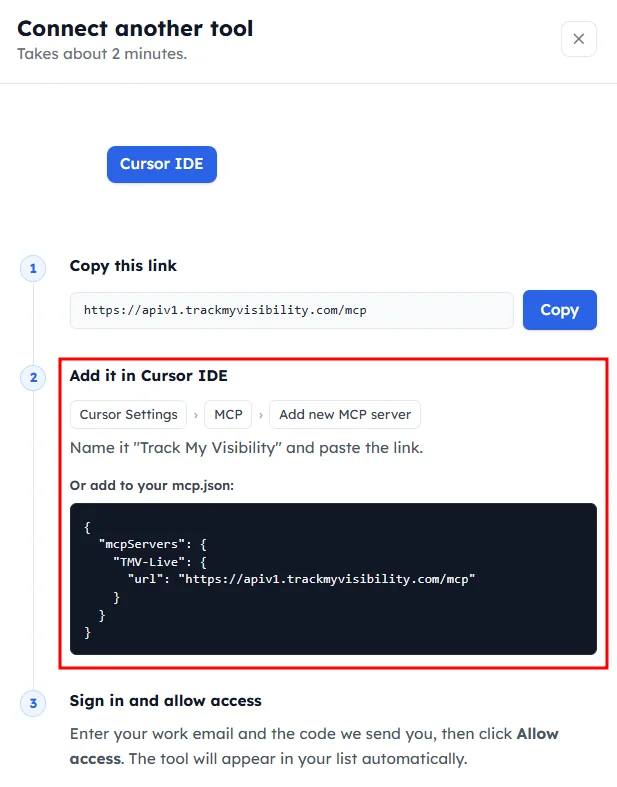
Cursor IDE#
- Go to Cursor Settings → MCP → Add new MCP server.
- Name it Track My Visibility and paste the link.
You can also add the server to your mcp.json file. The panel shows the code to copy.
Visual Studio Code#
- Add a
.vscode/mcp.jsonfile to your workspace, or run the MCP: Open User Configuration command to add it for all workspaces. - Copy the code from the panel into the file.
Devin#
- Go to
app.devin.ai, then Customize → MCPs → Add MCP. - Set Transport type to HTTP.
- Paste the link into Server URL.
- Set Authentication to OAuth.
How to ask questions#
The MCP page suggests questions under Try asking in your AI tool. Click Copy question and paste it into your AI tool. You can also ask your own questions, for example:
- "List the prompts where competitors are mentioned and we are not, grouped by topic."
- "Which domains do AI models cite most across our tracked prompts?"
- "How do AI models describe us compared with our main competitor?"
- "Create a monthly AI visibility report with our top gains, drops and three actions."
How to manage your connections#
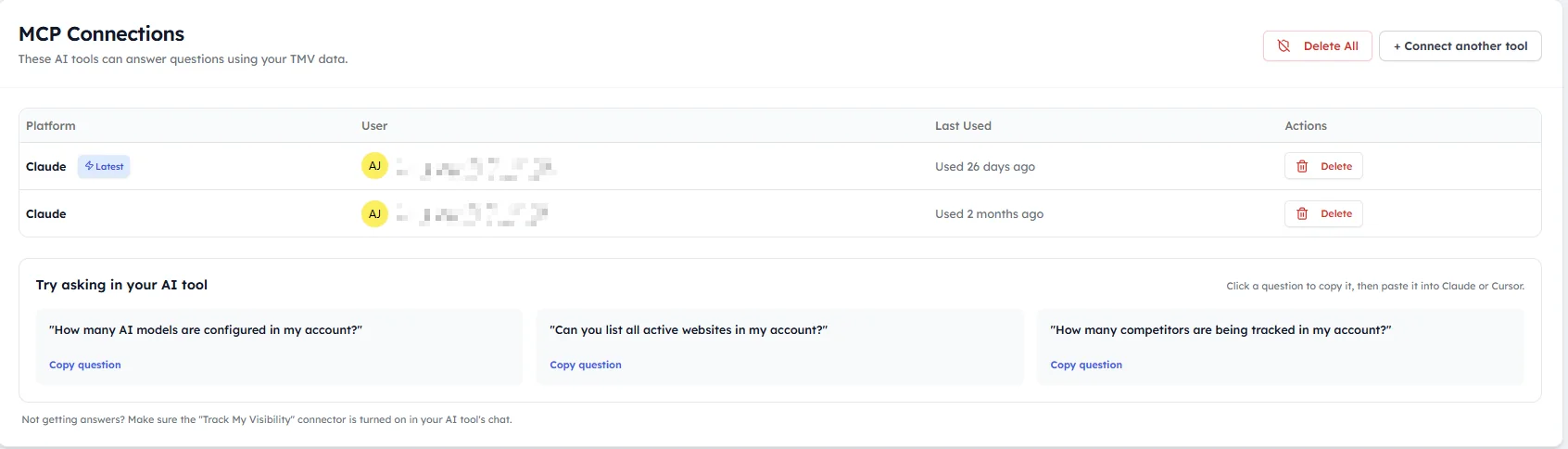
The MCP Connections table lists every connected tool. For each one, you'll see:
- Platform: the AI tool. The newest connection shows a Latest label.
- User: the account that connected it.
- Last Used: when the tool last used your data.
To remove one connection, click Delete in its row. To remove all of them, click Delete All.
Troubleshooting#
- No answers from your AI tool: make sure the Track My Visibility connector is turned on in your AI tool's chat.
- You can't add a custom connector: your AI tool may need a paid plan for custom MCP connections.
- You're still stuck: contact support. Tell us which AI tool you use and which step failed.
Frequently asked questions#
How do I connect Claude to my AI visibility data?
In Claude, go to Settings, then Connectors, then Add custom connector. Paste the Track My Visibility server URL, click Add, then sign in with your work email and click Allow access.
Can ChatGPT read my Track My Visibility data?
Yes. Turn on Developer mode in ChatGPT, create a new app with the Track My Visibility server URL and set Authentication to OAuth. After you sign in and allow access, ChatGPT can answer questions using your data.
Can my AI tool change my Track My Visibility account?
Your AI tool can add or delete prompts and add competitors. Everything else is read-only, and most AI tools ask you to confirm before an action that changes data.
Is MCP included in my plan?
MCP is included in paid plans, and you can test it during your trial. Some AI tools also require their own paid plan before they allow custom MCP connections.
Why isn't my AI tool answering with my data?
Make sure the Track My Visibility connector is turned on in your AI tool's chat. If you still get no answers, check the connection in the MCP Connections table and reconnect it if needed.
How do I disconnect an AI tool?
Open MCP under Monitoring and click Delete in the tool's row in the MCP Connections table. To remove every connected tool at once, click Delete All.
Related articles
Last updated 3 Nov 2026
Can't find what you need?
Email support@trackmyvisibility.com with your website, what you were trying to do and what you saw. A screenshot helps.