
Quickstart guide
On this page
- Before you start
- Step 1: Sign in
- Step 2: Add your website
- Step 3: Select your topics
- Step 4: Choose how many prompts to track
- Step 5: Review your prompts
- Step 6: Add your competitors
- What happens next
- Reading your first results
- Common questions
- Why is my visibility 0% on day one?
- Why do results change between runs?
- Can I change prompts after setup?
- Should I track more prompts for better data?
- Setup checklist
- What to do next
Set up your first website in the Track My Visibility (TMV) application and start tracking your AI visibility in about 10 minutes.
This guide walks you through the setup flow: adding your website, choosing what to track, and selecting the competitors you want to measure against. By the end, Track My Visibility will be running your prompts against AI models and collecting your first results.
Before you start#
Before creating your first project, make sure you have:
- Your website URL
- Your brand name and variations
- Your main competitors
- The countries and languages you want to track
- Topics or questions your customers ask AI platforms
Why this matters:
AI models do not search like traditional search engines. They answer based on context, prompts, sources, and user intent. Setting up the right inputs helps TMV collect more meaningful visibility data.
Step 1: Sign in#
Go to app.trackmyvisibility.com, enter your work email, and select Send OTP.
Enter the one-time code from your inbox to sign in. New accounts go straight into setup, while returning users land on their dashboard.
Step 2: Add your website#
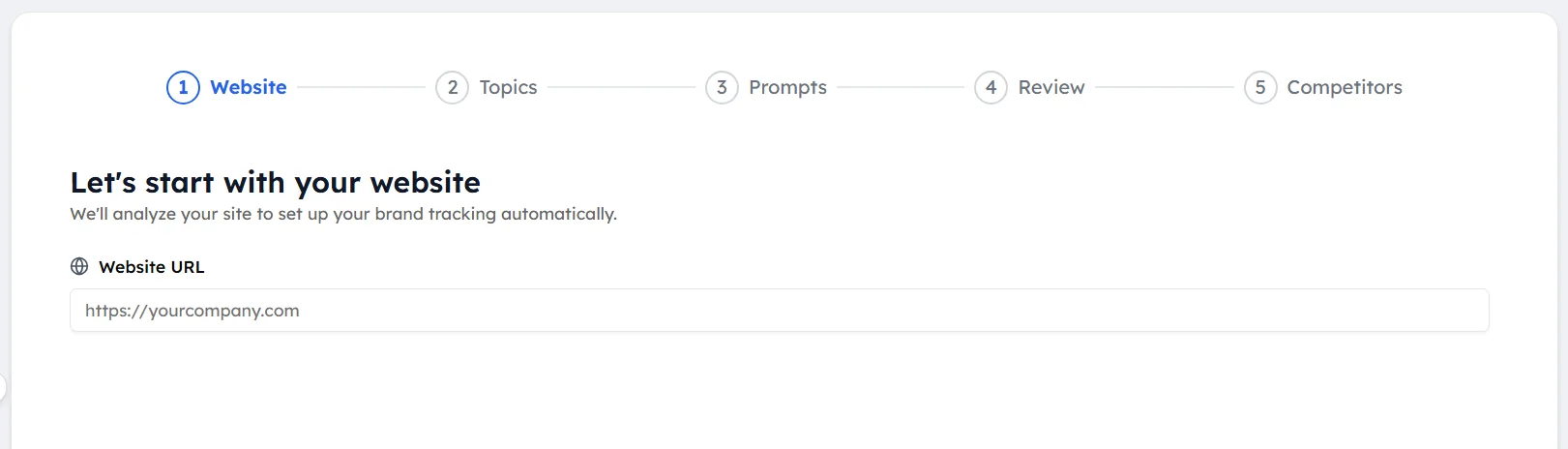
Enter your full website URL and select Analyze Website.
TMV reads your site and pre-fills your brand details.
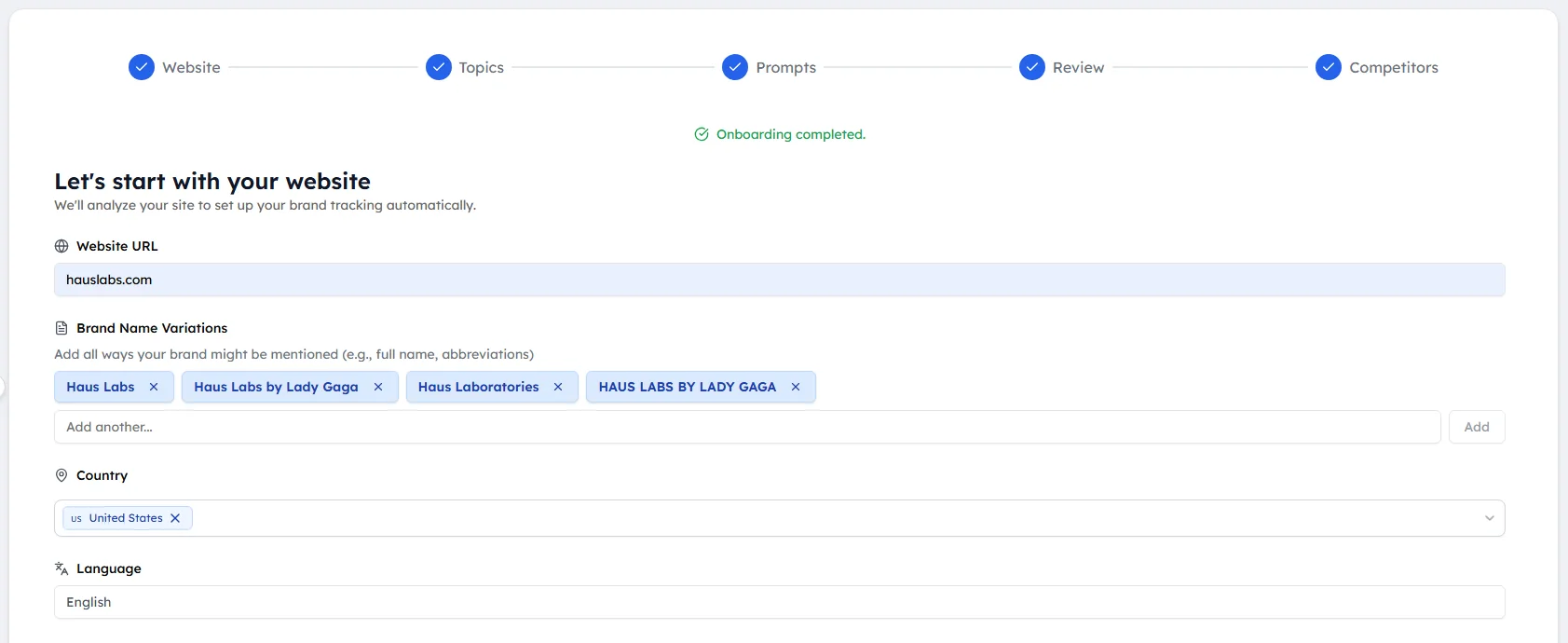
Review the brand name variations it detected, and add any missing ones, abbreviations, legal entity names, product-led names, and common misspellings. AI models refer to brands inconsistently, and these variations help Track My Visibility recognize a mention as yours.
Then select your country and language, which determine the market TMV tests in.
Step 3: Select your topics#
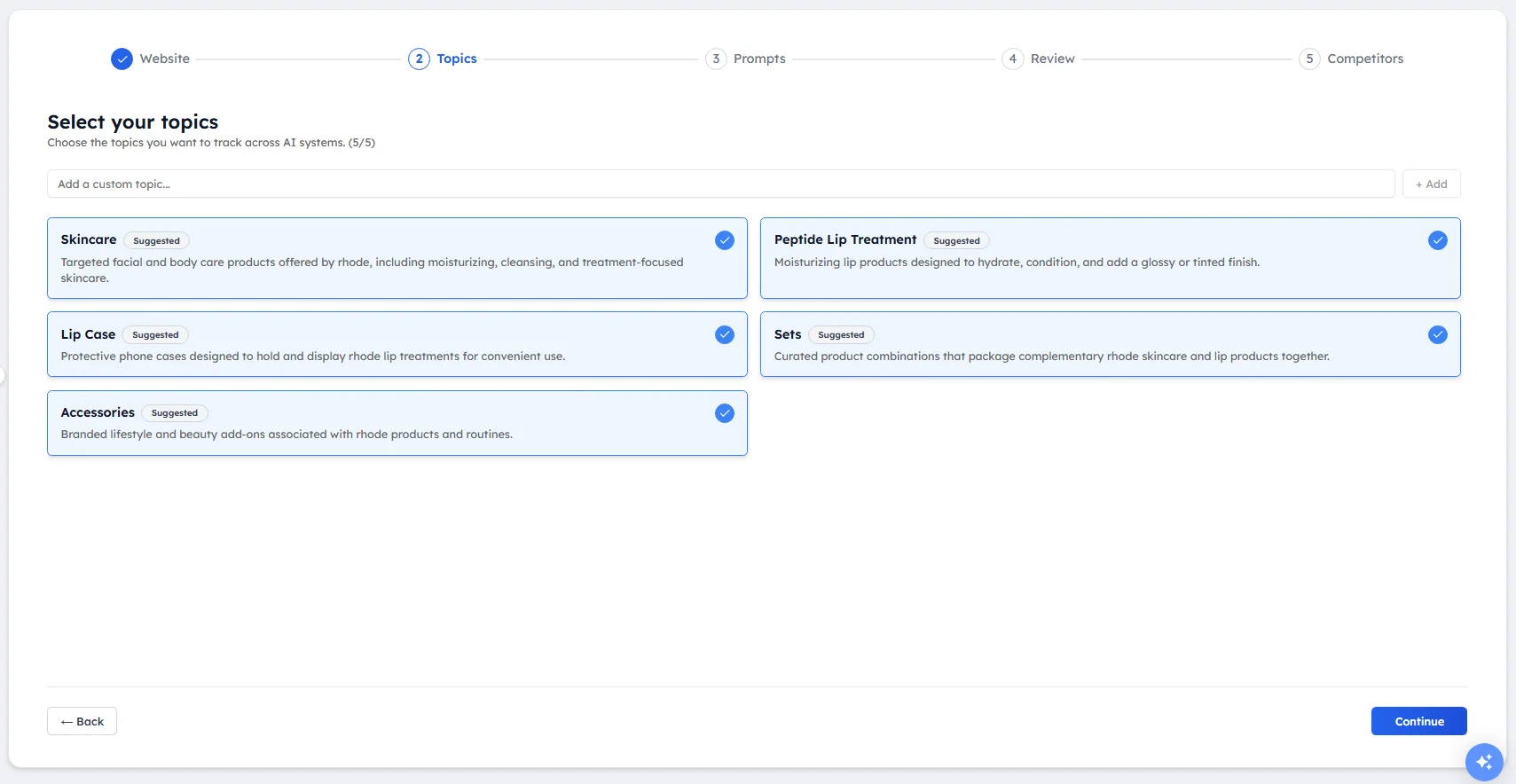
Topics are the themes your prompts are grouped under. TMV suggests a set based on your website, all pre-selected. Deselect anything that does not reflect your business, and add your own in the custom topic field if something important is missing.
Step 4: Choose how many prompts to track#
Use the slider to choose how many prompts to generate from your selected topics. Each active prompt uses one slot from your account allocation, shown in the top-right corner.
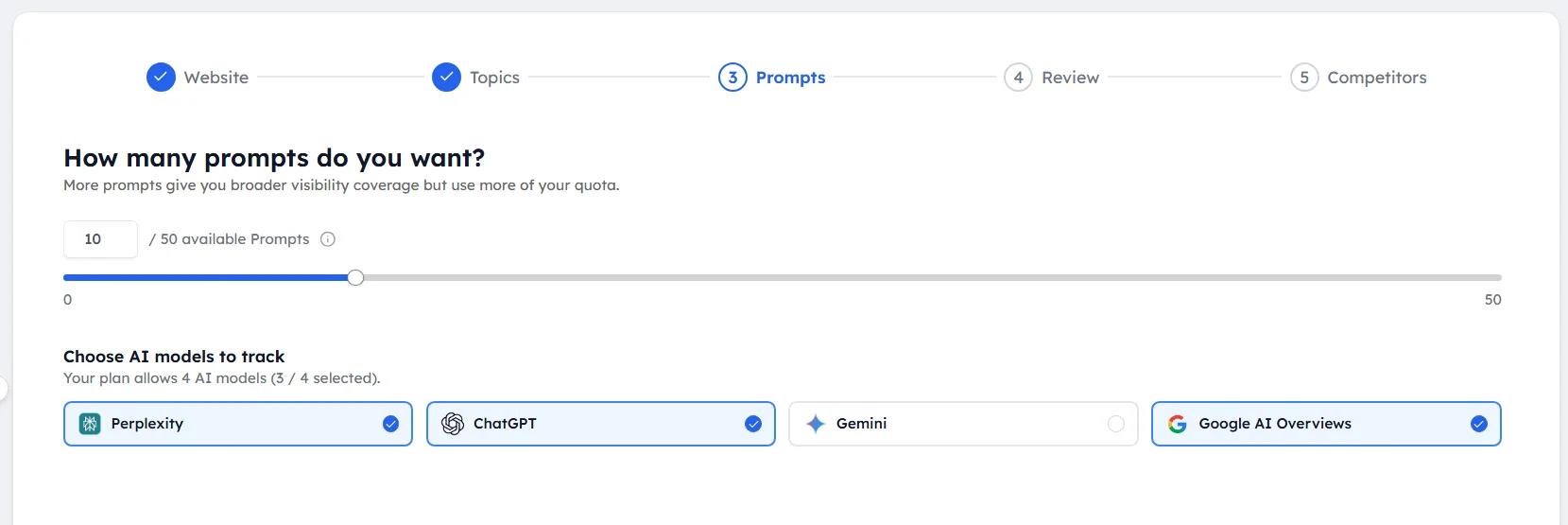
Start small. A focused set of 10 to 20 prompts gives you clearer signal than a large set you have not reviewed, and you can add more at any time.
Step 5: Review your prompts#
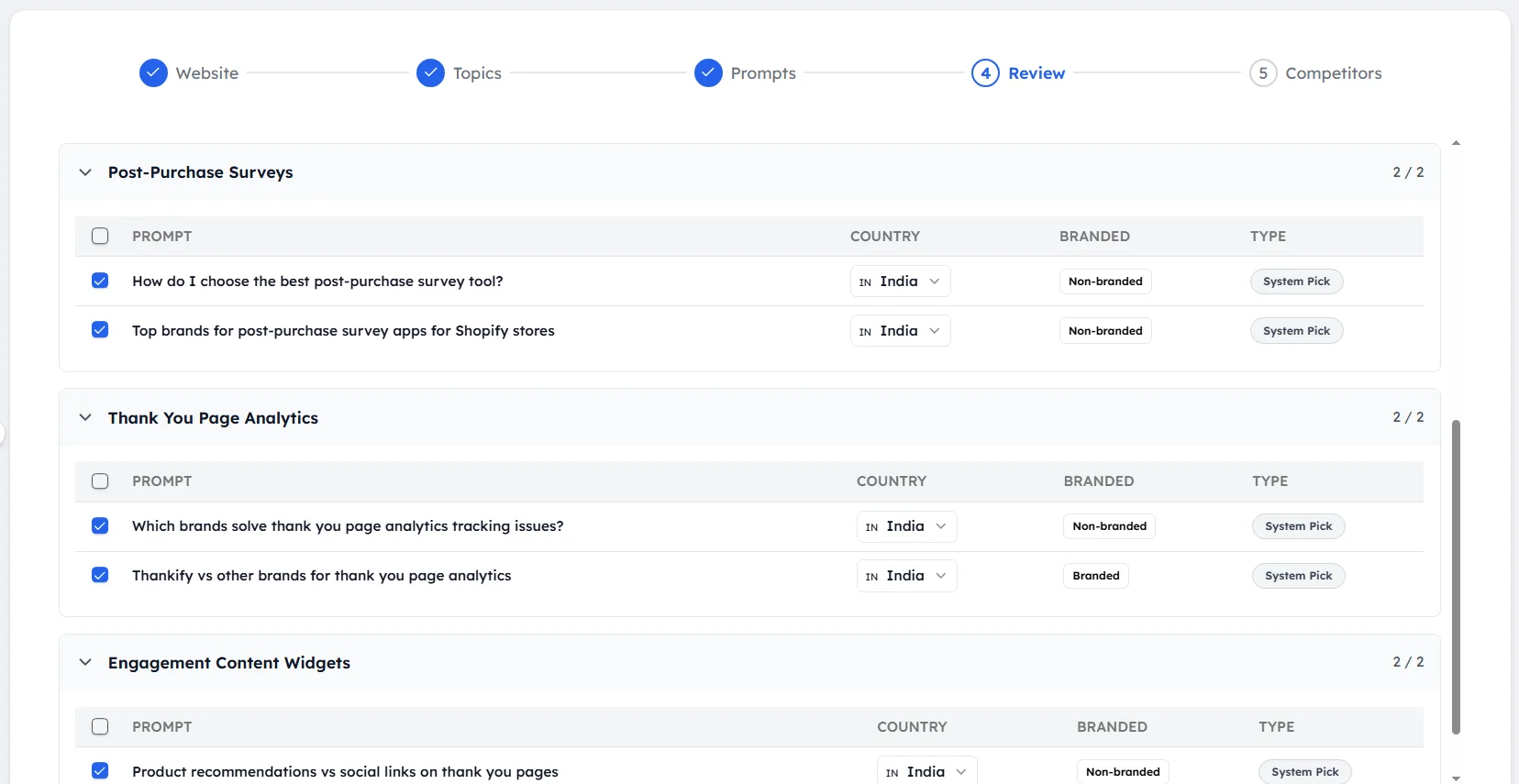
Track My Visibility shows every generated prompt, grouped by topic, with four attributes:
- Intent — what the person asking is trying to do
- Branded — whether the prompt names your brand, or asks about the category generally
- Type — whether TMV generated the prompt or you added it
- Country – allowing you to choose the country you want to track in
Keep a mix of both branded and non-branded prompts. Branded prompts show how AI models describe you; non-branded prompts show whether you are recommended at all.
Select + Add Custom Prompt to include questions of your own.
Step 6: Add your competitors#
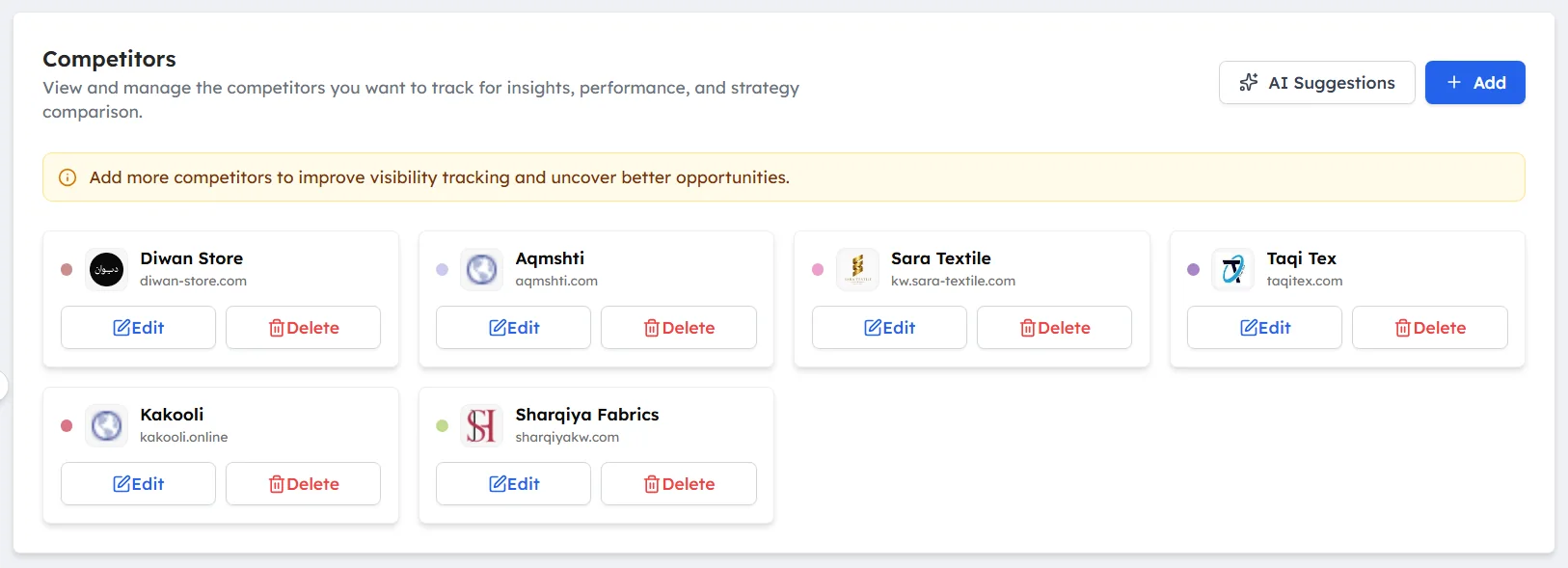
TMV suggests competitors based on your website and category. Deselect any that are not relevant, and add others by entering their domain. Choose the brands that actually appear in answers alongside you, not only the ones you track commercially. You can add up to five during setup and more later.
Select Complete Setup to finish.
What happens next#
Your prompts begin running against the supported AI models immediately. Initial results appear shortly after setup, and your data becomes more reliable with each scheduled run.
Reading your first results#
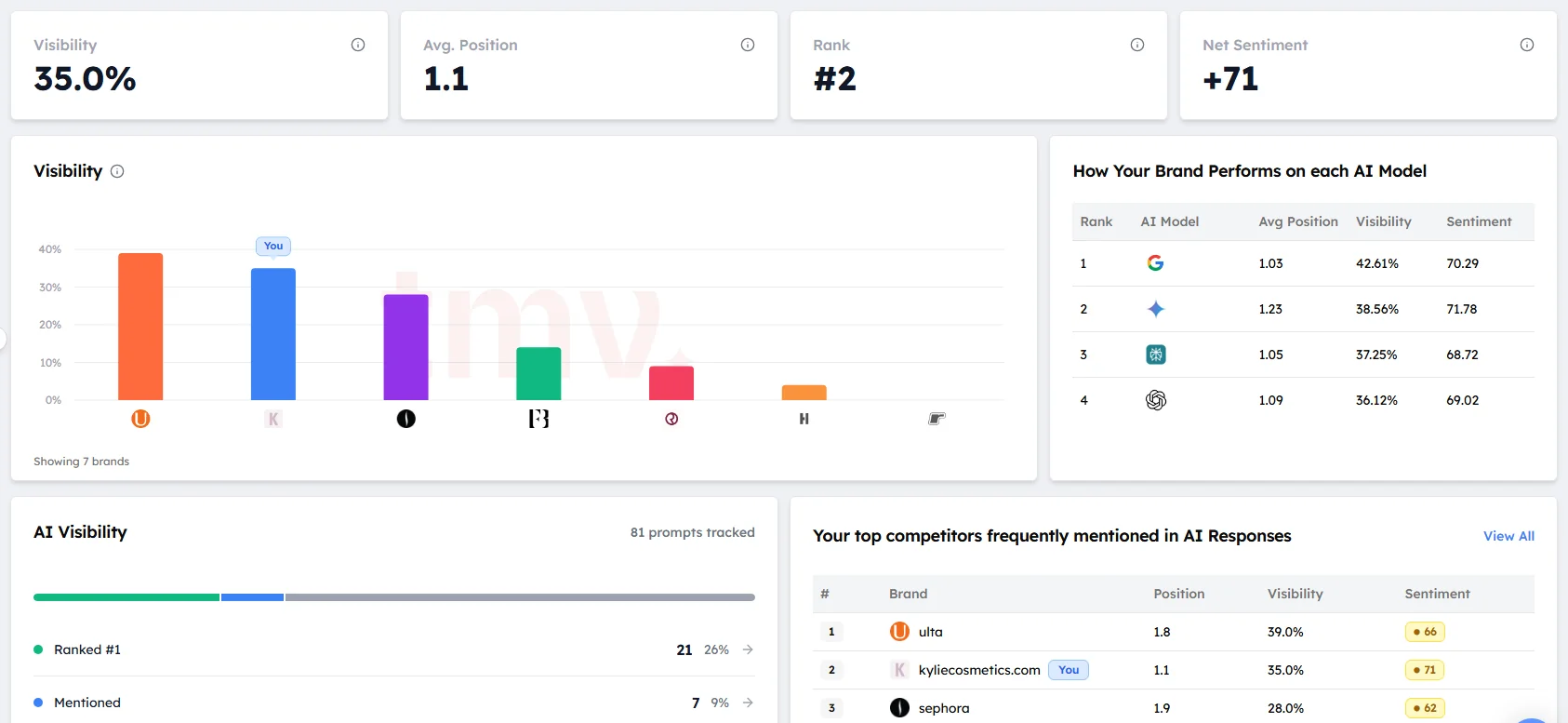
Open your dashboard and work through it in this order:
- Visibility — are you being mentioned at all?
- Prompt coverage — which prompts return your brand, and which never do?
- Top competitors — who is appearing in your place?
- Sources — which pages are the models citing to reach those answers?
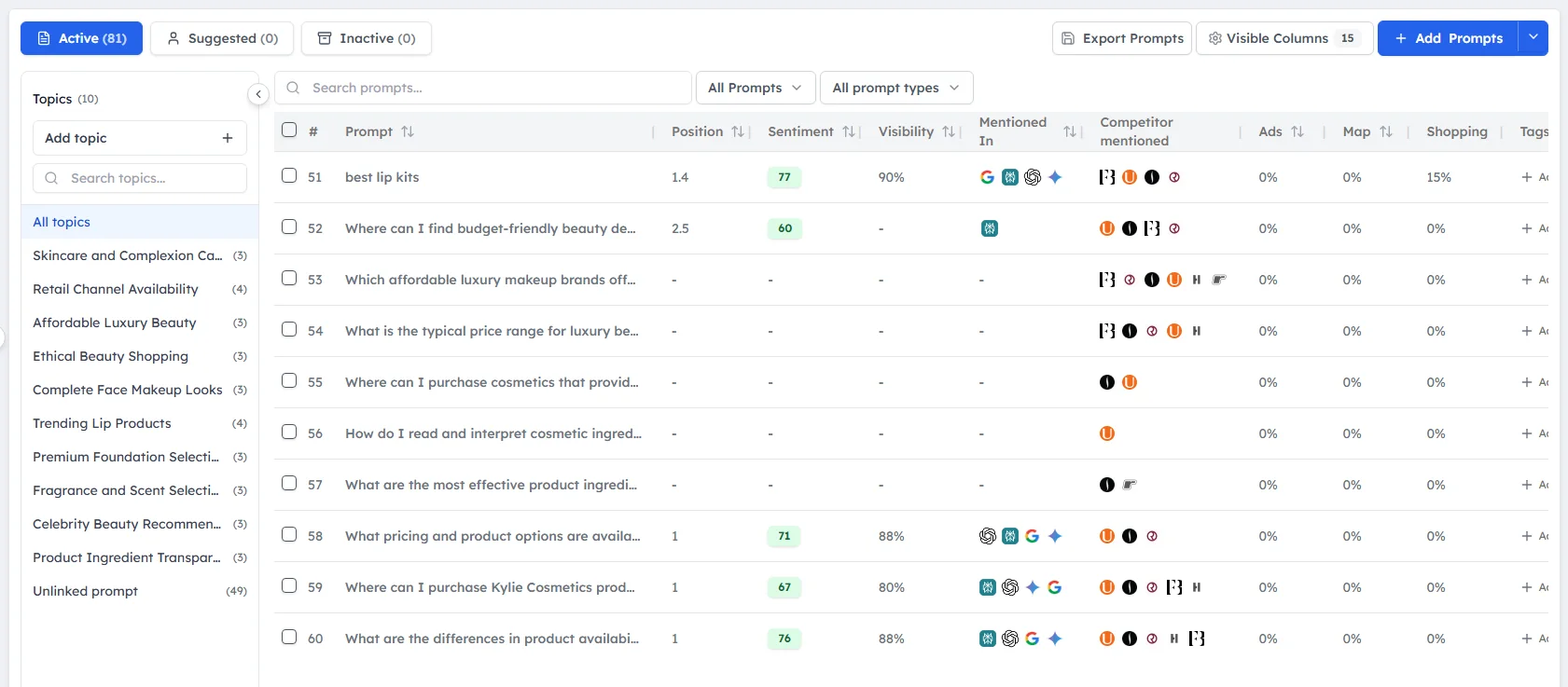
If you’re tracking a mix of branded and non-branded queries, branded prompts should return you far more often than non-branded ones. If you are missing from branded prompts too, the models do not recognize your brand yet, and that is a different problem to fix.
Also, do not read too much into your first day. AI models answer the same question differently from one run to the next, so a single set of responses is a snapshot rather than a measurement. Trends over a week or more are what matter for you to interpret data.
Common questions#
Why is my visibility 0% on day one?#
There are usually two reasons. The first is timing: your prompts may still be running, so the dashboard is not complete yet. The second is real: the AI models do not mention your brand for these prompts, which is common for newer or smaller brands.
Give it a few scheduled runs before drawing conclusions. If you are still at 0% after a week, look at the Sources panel to see which sites the models cite instead of you. That tells you where to start building presence.
Why do results change between runs?#
AI models generate each answer fresh. Ask the same question twice, and you can get different wording, different brands, and a different order. This is normal behavior and not a tracking error.
Can I change prompts after setup?#
Yes. You can add custom prompts at any time, and you can adjust your set as you learn what is useful. Each active prompt uses one slot from your account allocation, so keep an eye on the counter in the top-right corner as you add more.
A good habit is to review your prompts after the first week. Drop anything that is too vague or that your buyers would never ask, and replace it with a question closer to real buying behavior.
Should I track more prompts for better data?#
Not at first. More prompts do not mean better insight if you have not reviewed what you are tracking. Tracking a large, unreviewed set of prompts gives you noise and uses up your prompt allocation. Start with 20 to 30 prompts you have checked yourself. Once you understand how your brand shows up, expand into new topics or add more prompts to topics that matter most.
Setup checklist#
Before you leave setup, confirm each of these. Each one affects how reliable your data will be.
- Brand name variations added: Include abbreviations, legal names, product-led names, and common misspellings. Without them, TMV can miss mentions that are really yours.
- Irrelevant topics removed: Every topic you keep generates prompts. Remove any that do not reflect what you want to be known for, so you are not tracking (or being recommended for) the wrong things.
- 10 to 20 prompts, mixed branded and non-branded: Branded prompts show how models describe you. Non-branded prompts show whether you are recommended at all. You need both in the right ratio.
- Competitors confirmed: Keep the brands that actually appear next to you in AI answers, not just the ones you compete with commercially.
- Setup completed: Select Complete Setup so your prompts start running.
What to do next#
Once your first results are in, these guides take you from setup to action.
- Setting up your prompts: Learn how to write prompts that match real buying questions, how to balance branded and non-branded prompts, and how to refine your set over time. Read this next if your first results feel off or too generic.
- Understanding your dashboard: A full walkthrough of every panel, what each metric means, and how to read it. Read this once you have a few days of data.
- Opportunities to improve: Shows how to turn your results into specific work, such as prompts where you almost appear, and sources worth targeting. Read this when you are ready to act on what you have found.
Related articles
Last updated 3 Nov 2026
Can't find what you need?
Email support@trackmyvisibility.com with your website, what you were trying to do and what you saw. A screenshot helps.