
Organizing prompts with tags
On this page
Tags are labels you add to prompts in the Track My Visibility application. They help you filter and group prompts in ways that topics can't, such as by funnel stage, campaign or market.
A prompt can have only one topic, but it can have many tags. A tag can also cover prompts from different topics, so you can group prompts across your whole prompt set.
How to use tags#
Common ways to use tags include:
- Product line: group prompts by product, such as two different plans or editions.
- Funnel stage: group prompts by research, comparison or purchase intent.
- Campaign: group the prompts a new piece of content is meant to win.
- Market: group prompts by segment, such as enterprise or small business.
- Client: group prompts by client if you're an agency.
Plan your tags before you add them. A short, consistent set of tags is easier to filter by than many one-off labels.
How to add tags to a prompt#
Step 1. Open the prompt#
Click Prompts in the left sidebar, then open the prompt you want to tag.
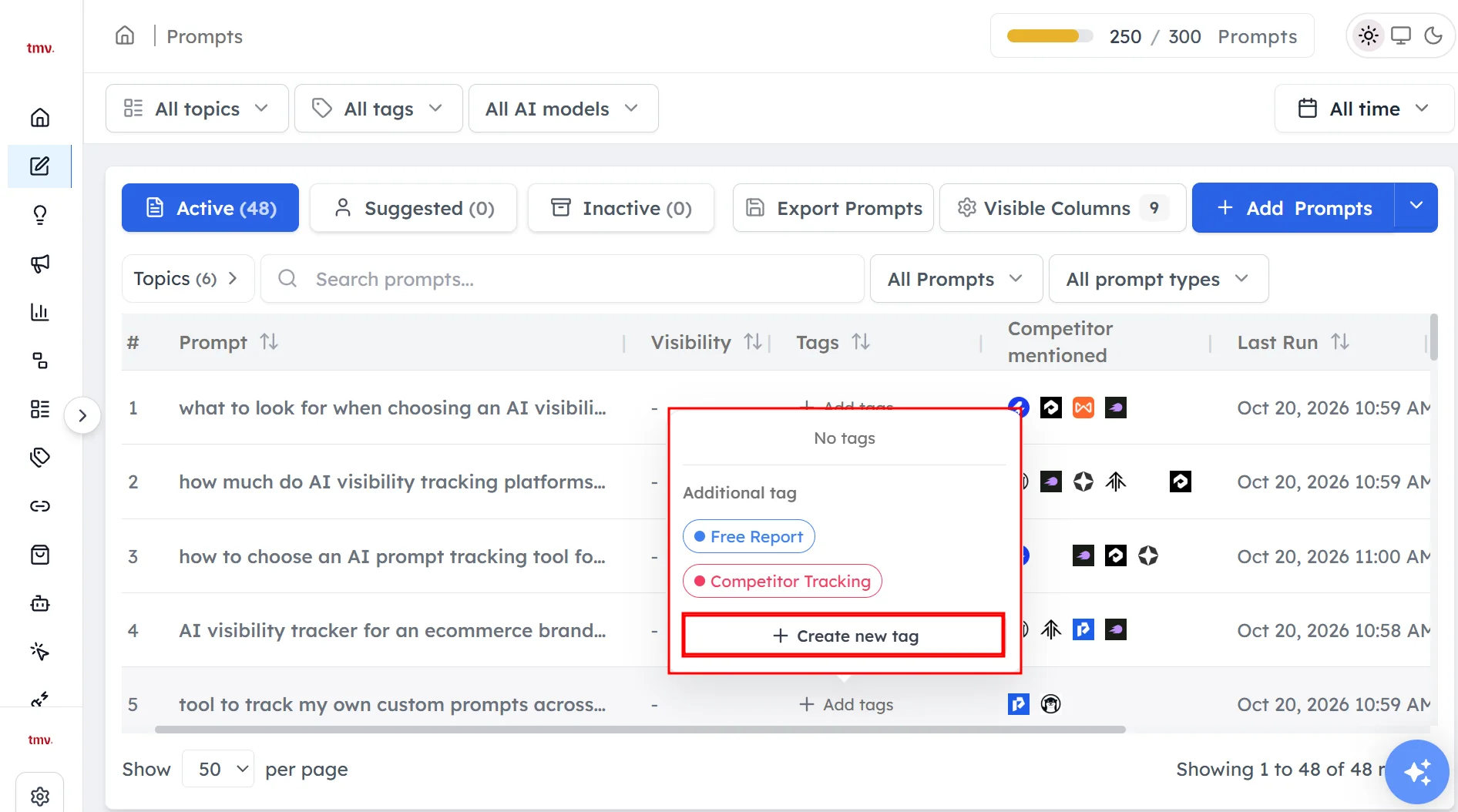
Step 2. Add a tag#
Choose an existing tag, or type a new one to create it. You can add more than one tag to a prompt.
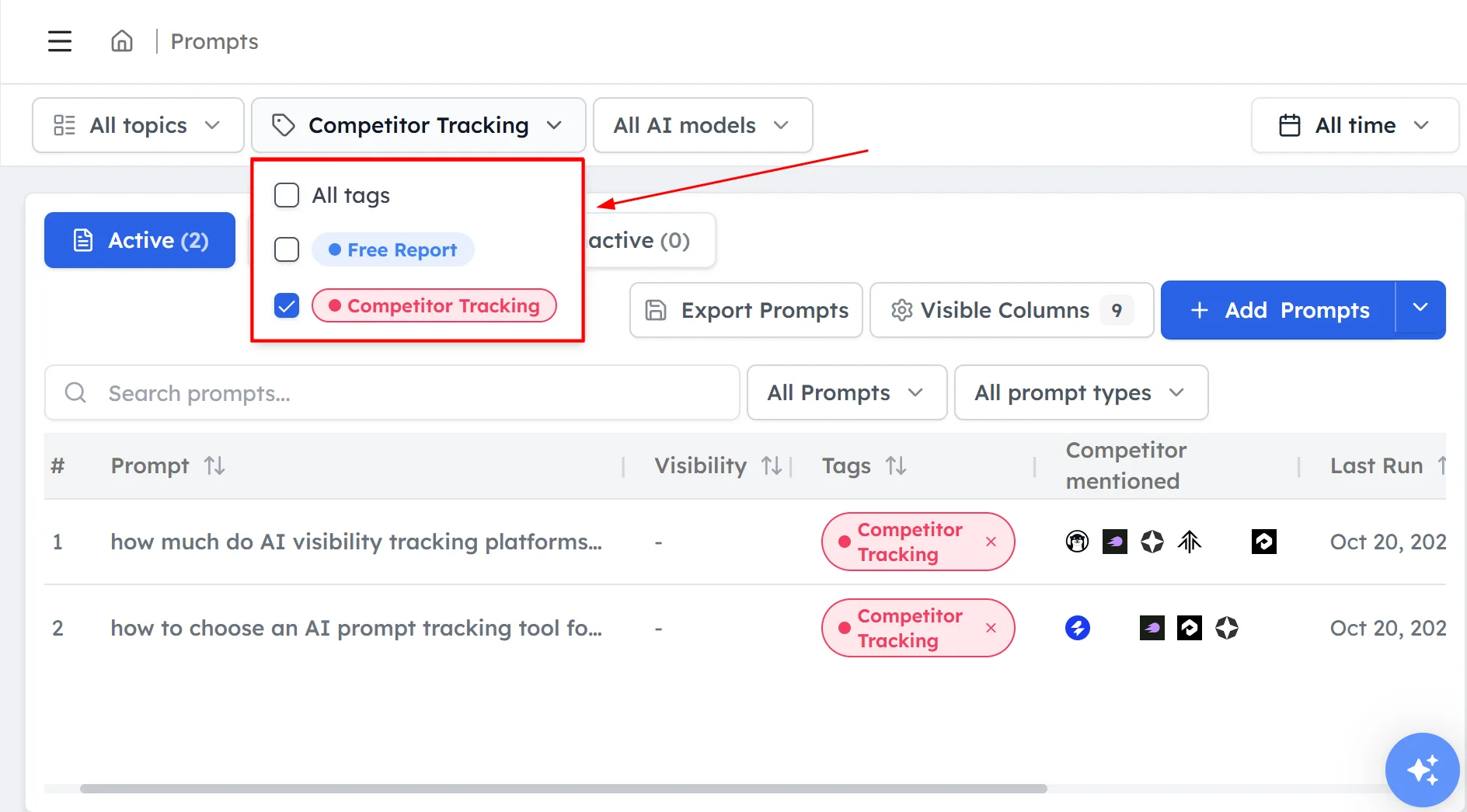
How to filter by tag#
On the Prompts page, open the All Tags filter and select a tag. Only the prompts with that tag are shown. You can also filter by tag in Sources and Performance.
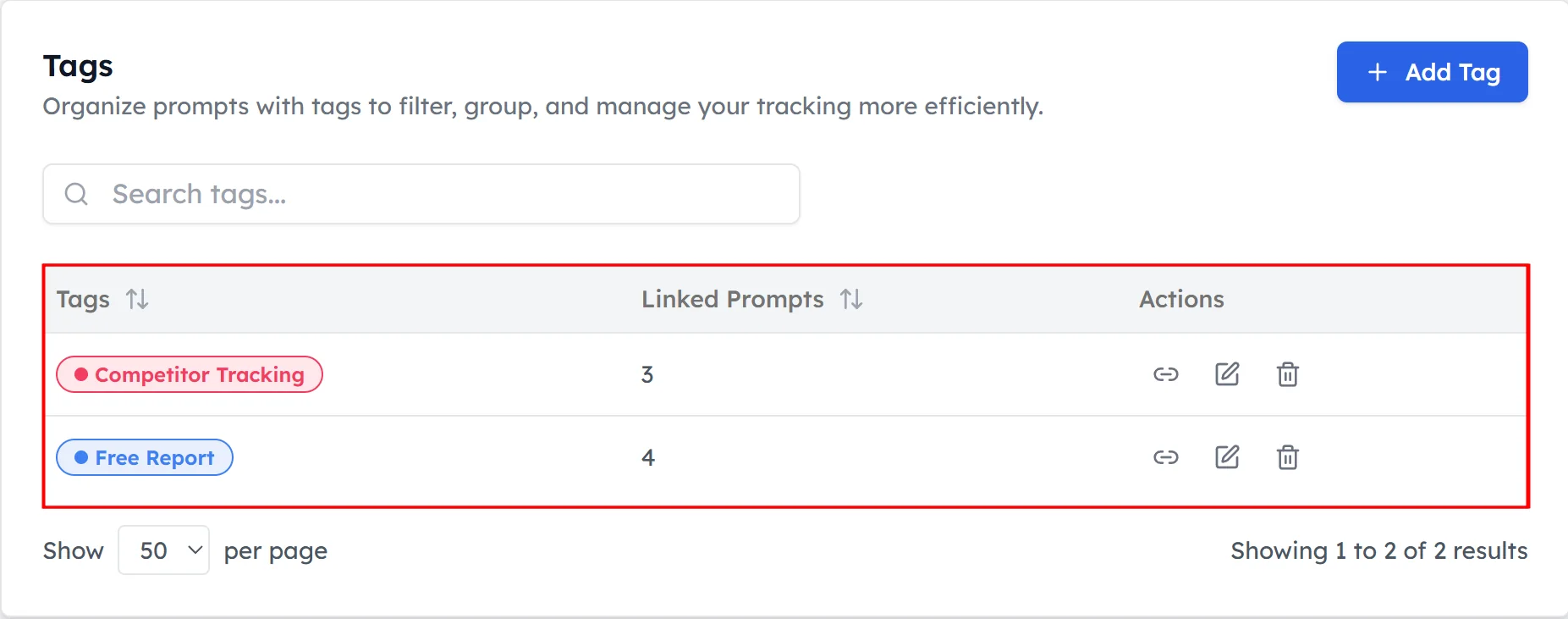
How to manage your tags#
Click Tags under Research in the left sidebar to see every tag and how many prompts use it. You can rename or delete tags on this page. Deleting a tag doesn't delete its prompts.
How to use tags to measure a campaign#
Tags are useful for checking whether a piece of content changed your AI visibility:
- Tag the prompts the new content is meant to answer, such as "Campaign: pricing guide".
- Note the visibility for that tag before you publish.
- Filter by the tag every week after you publish and compare the visibility and position.
Because AI answers vary from day to day, compare at least two to four weeks of data before and after the change.
Frequently asked questions#
What are tags in Track My Visibility?
Tags in Track My Visibility are labels you add to prompts so you can filter and group your results. A prompt can have many tags, and a tag can cover prompts from different topics.
What is the difference between tags and topics?
A topic says what a prompt is about, and each prompt has exactly one topic. Tags are extra labels for any other grouping, such as funnel stage, campaign or market, and a prompt can have several tags.
Can a prompt have more than one tag?
Yes. A prompt can have as many tags as you need. For example, a prompt can be tagged with both a funnel stage and a campaign.
Does deleting a tag delete its prompts?
No. Deleting a tag removes the label from your prompts, but the prompts and their data stay in your account.
Where can I filter by tag?
You can filter by tag on the Prompts page with the All Tags filter, and in Sources and Performance. Filtering by tag shows the metrics for only the prompts with that tag.
Related articles
Last updated 3 Nov 2026
Can't find what you need?
Email support@trackmyvisibility.com with your website, what you were trying to do and what you saw. A screenshot helps.