
Understanding the prompts table
On this page
The prompts table on the Prompts page lists every prompt you track in the Track My Visibility application, along with its AI visibility results. The Overview dashboard shows how your brand performs overall, and the prompts table shows which questions are behind those metrics.
Use the prompts table to find the exact prompts where your brand is strong, where it's missing and where competitors appear instead.
How to read the prompts table#
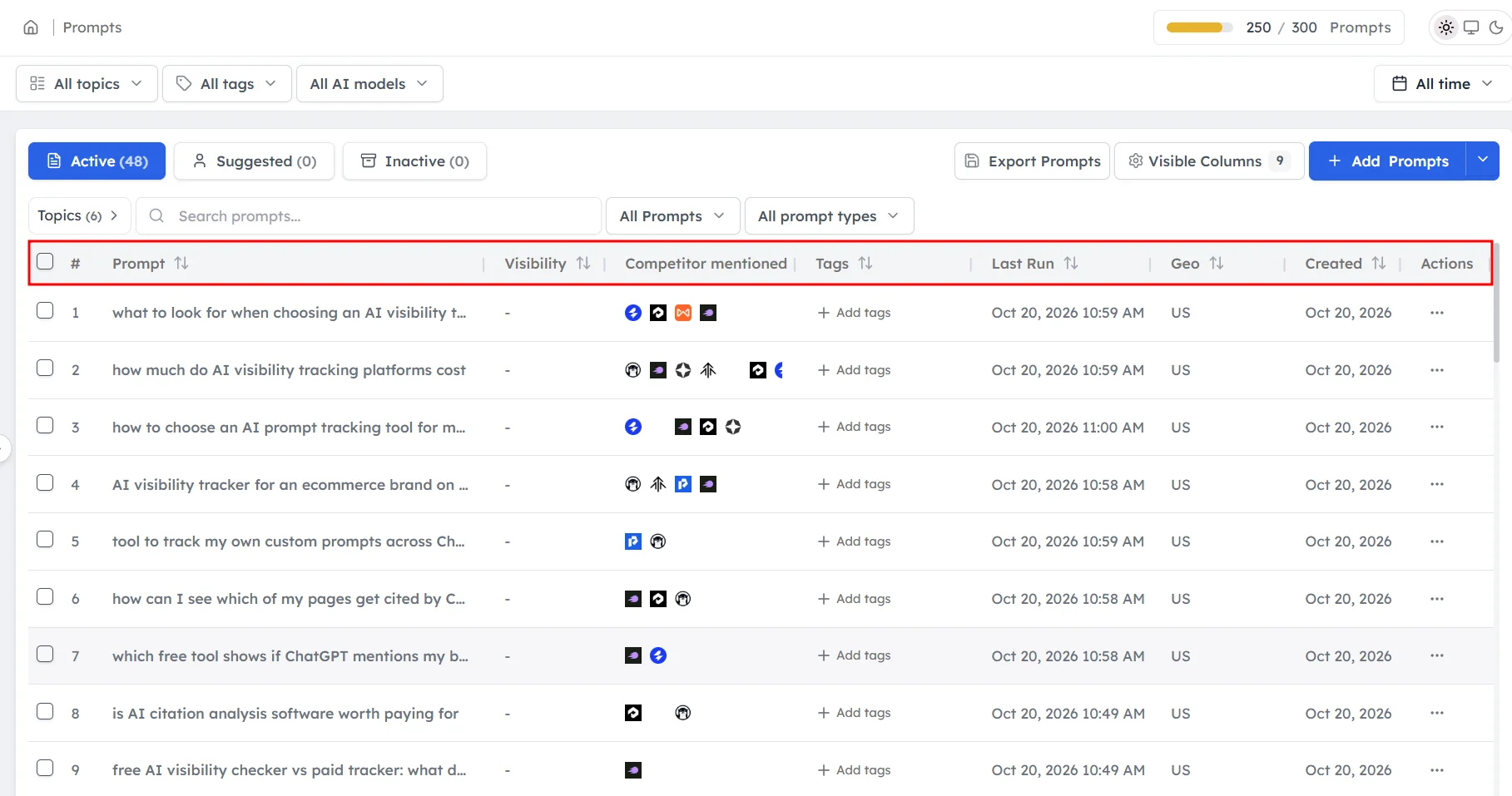
Click Prompts in the left sidebar. Each row is one prompt, and the columns show:
- Prompt: the question, with its topic and tags.
- Position: your average position when you're mentioned. A dash means you weren't mentioned.
- Sentiment: how positively AI models described your brand.
- Visibility: the percentage of answers that mention your brand.
- Mentioned in: the AI models that named your brand.
- Competitors: the tracked competitors mentioned for this prompt.
- Last run: when the prompt was last asked.
- Country: the market the prompt runs in.
- Created: when the prompt was added.
How to filter and sort prompts#
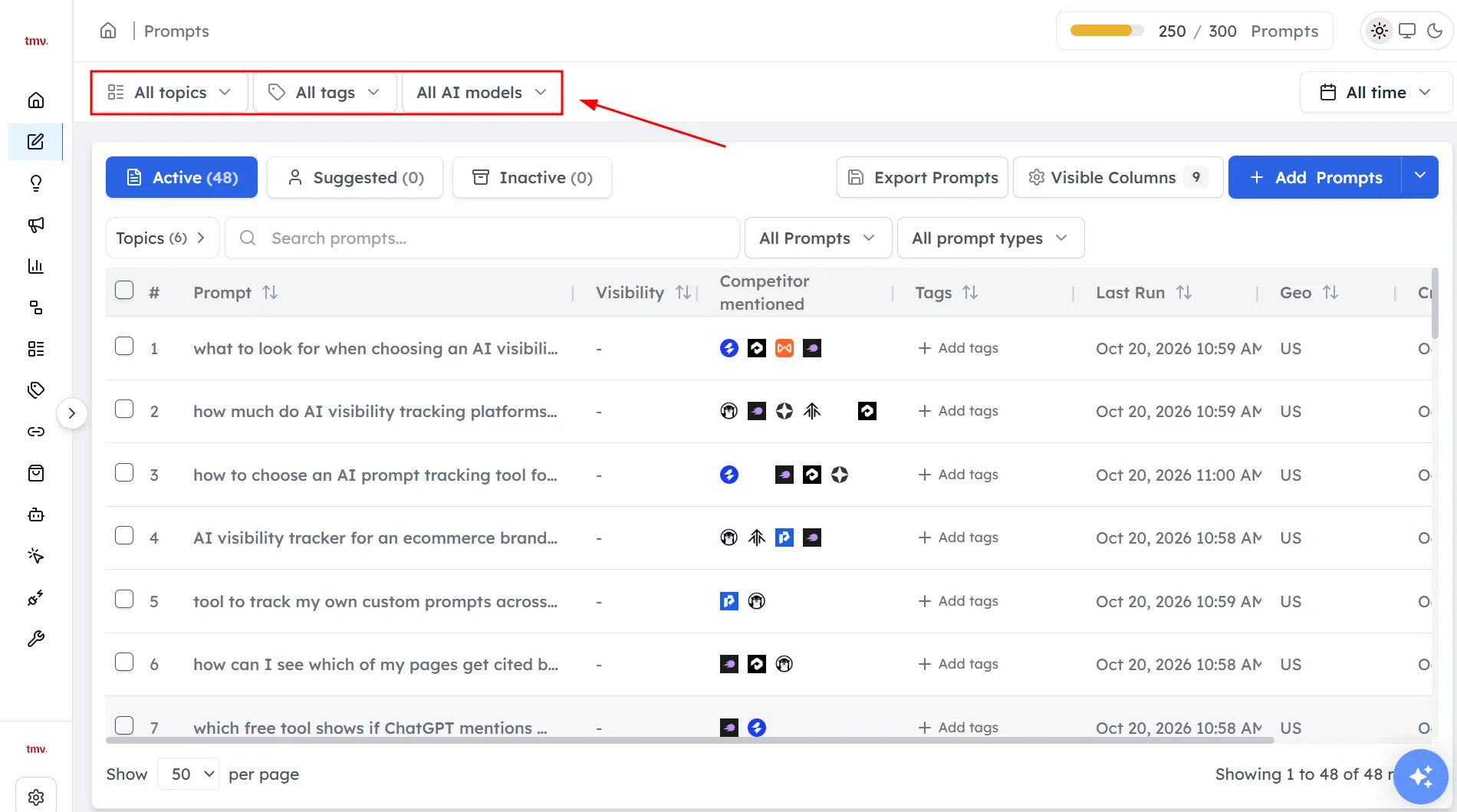
Use the filters above the table to narrow the list:
- AI model: see how one AI model treats your prompts.
- Topic: focus on one product line or theme.
- Tags: see a group of prompts you've labeled.
- Date range: choose the period to show.
You can also sort by position, sentiment, visibility or change.
How to customize the columns#
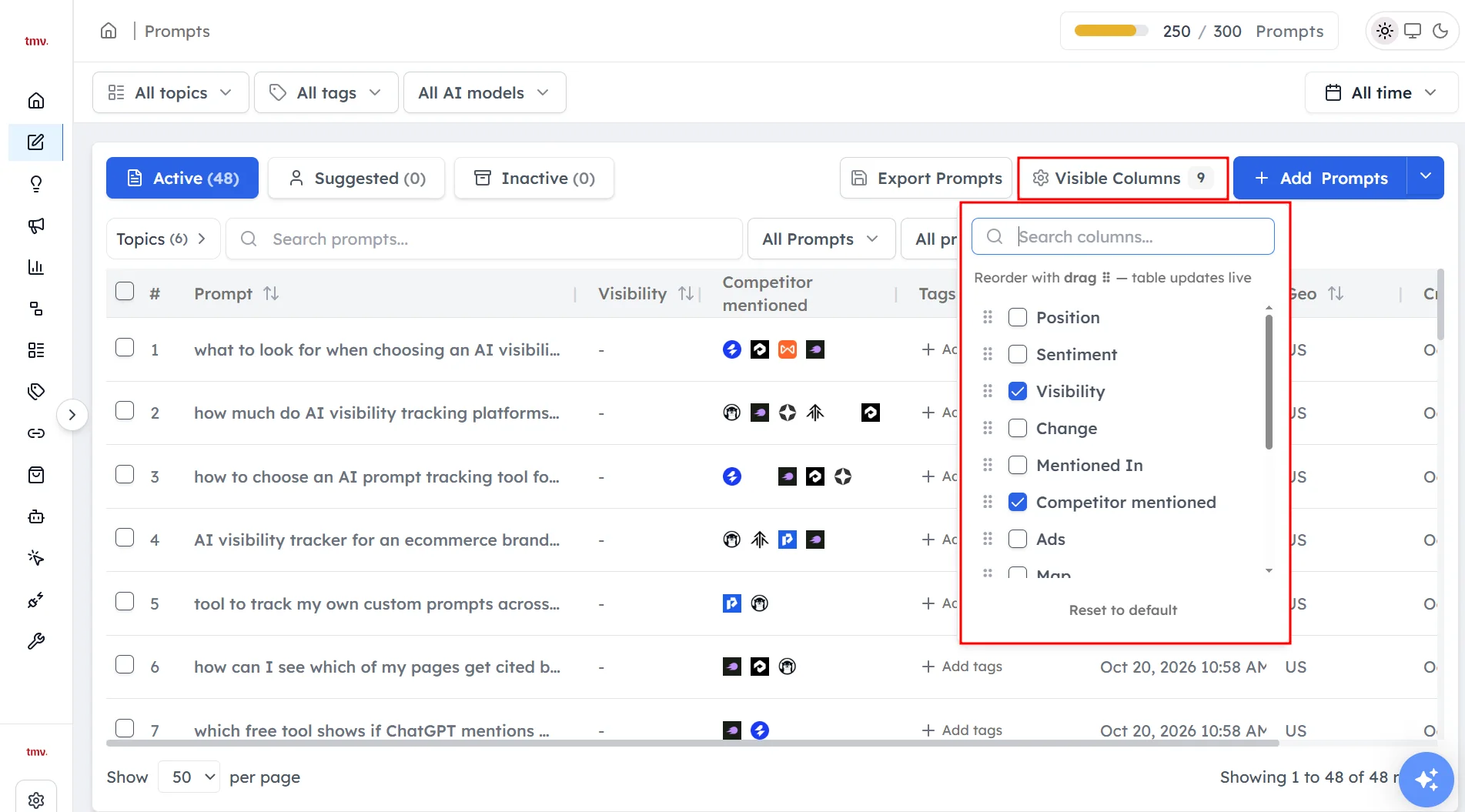
Open the column settings and hide any columns you don't need. Hiding a column only changes your view and doesn't change your data.
How to open a prompt#
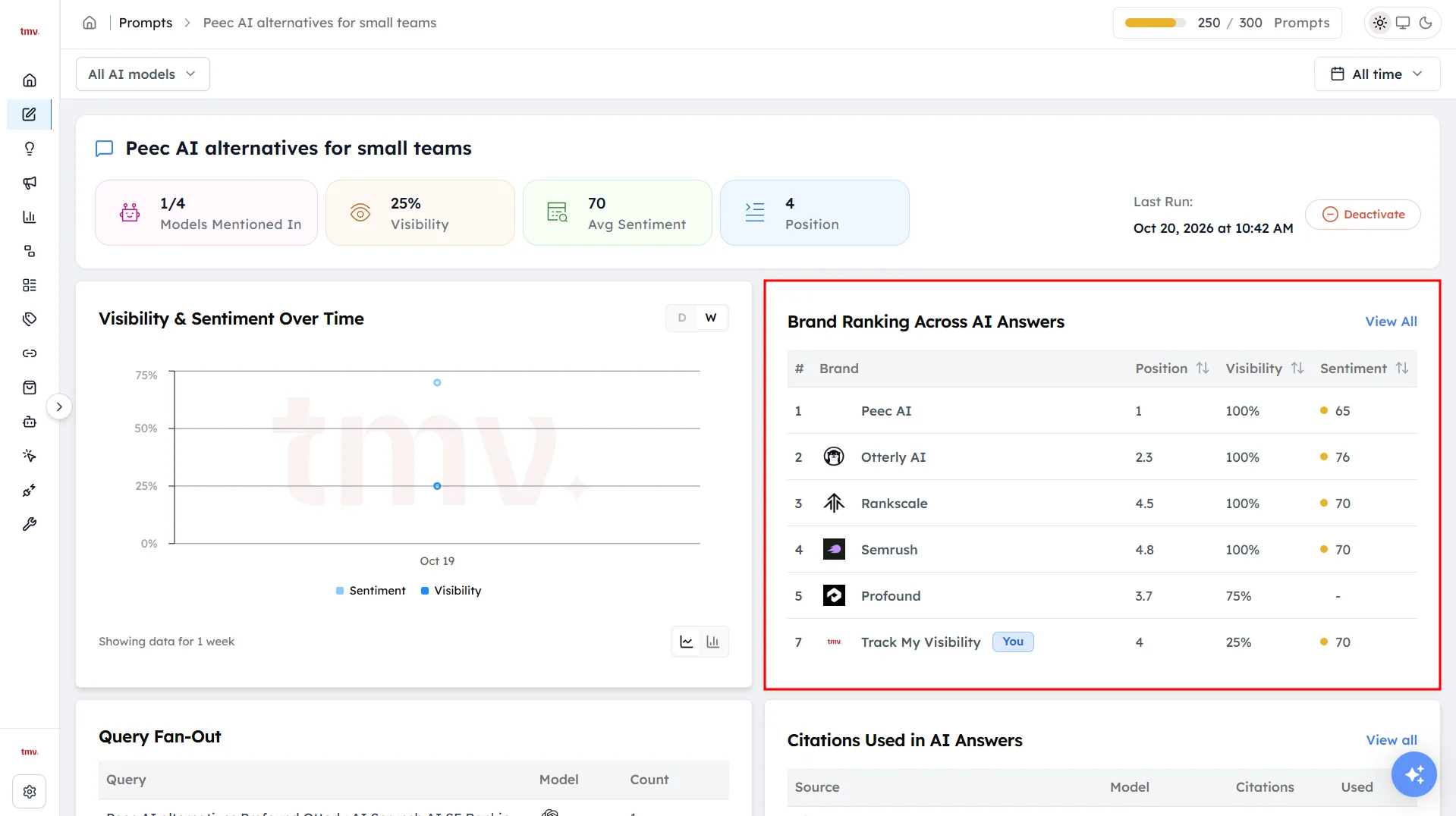
Click a prompt to see its details, including its visibility, position and sentiment, the AI models that mention your brand and the competitors that appear with you. From the prompt details, you can open the full AI answers. See Understanding chats.
How to export the table#
Click Export Prompts to download the table as a spreadsheet.
What to look for in the prompts table#
The prompts table is most useful when you read it with a question in mind:
- Where am I missing? Sort by visibility, lowest first, to find prompts where AI models never name your brand.
- Where am I close? Look for prompts with a position of 2 or 3, which are often the easiest to improve.
- Where is my description weak? Sort by sentiment, lowest first, and open the chats to see why.
- Who is winning instead? Check the Competitors column on prompts where your brand isn't mentioned.
Frequently asked questions#
What does the prompts table show?
The prompts table shows every prompt you track with its position, sentiment, visibility, the AI models that mention your brand and the competitors that appear. It lets you see which questions drive your overall AI visibility metrics.
Why does a prompt show a dash for position?
A dash means no AI answer to that prompt mentioned your brand in the selected date range. Position is only calculated for answers that mention your brand.
How do I see results for one AI model only?
Use the AI model filter above the table and select the model you want, such as ChatGPT or Perplexity. The table then shows position, sentiment and visibility for that AI model only.
Can I export my prompts and results?
Yes. Click Export Prompts to download a spreadsheet with every prompt and its position, sentiment and visibility.
How do I find prompts that are easiest to improve?
Look for prompts where your brand is mentioned but not first, such as a position of 2 or 3, and prompts where one AI model mentions you and the others don't. The Quick Wins card on the Overview dashboard lists these prompts for you.
Related articles
Last updated 3 Nov 2026
Can't find what you need?
Email support@trackmyvisibility.com with your website, what you were trying to do and what you saw. A screenshot helps.