
Connecting your site
On this page
- How to start the setup
- Step 1. Open Tracking Insights
- Step 2. Choose a logs provider
- How to connect with Cloudflare
- Step 1. Enter your API key
- Step 2. Verify the key
- Step 3. Deploy the worker
- How to upload log files
- Step 1. Export your server logs
- Step 2. Upload the files
- Which option to choose
- Frequently asked questions
Connecting your site gives Tracking Insights in the Track My Visibility application access to your website's traffic logs. Tracking Insights uses these logs to show which AI crawlers visit your pages, how often they visit and which pages they read.
You can connect your site in two ways: through Cloudflare, which updates automatically, or by uploading log files from your host or server. Robots.txt only shows which bots are allowed, so log data is the only way to see which bots actually visit.
How to start the setup#
Step 1. Open Tracking Insights#
Click Tracking Insights under Monitoring in the left sidebar. The Agent analytics onboarding window opens. If it doesn't, click + Add.
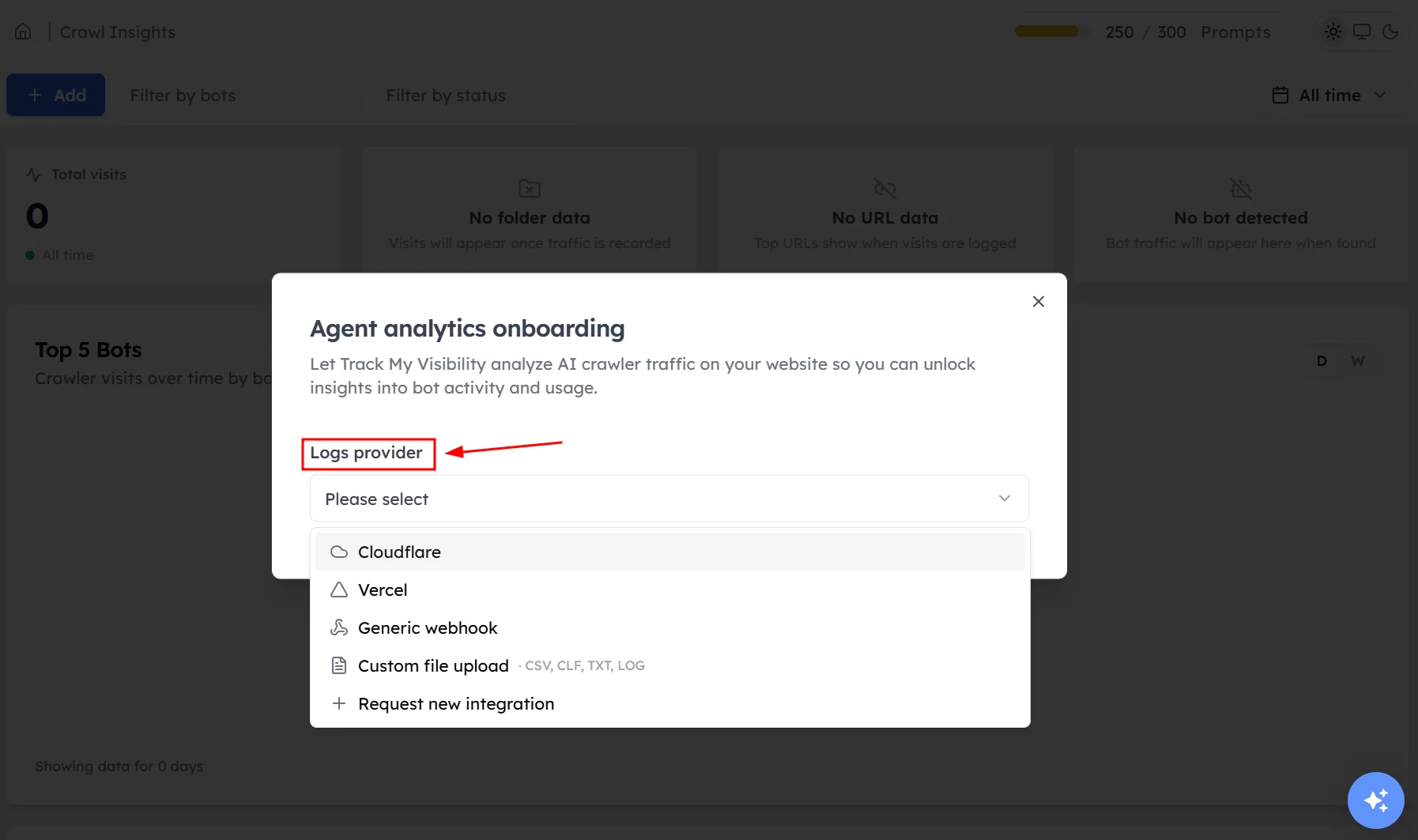
Step 2. Choose a logs provider#
Open Logs provider and select Cloudflare or Custom file upload.
How to connect with Cloudflare#
Use Cloudflare if your site runs through Cloudflare. Your crawler data then updates automatically.
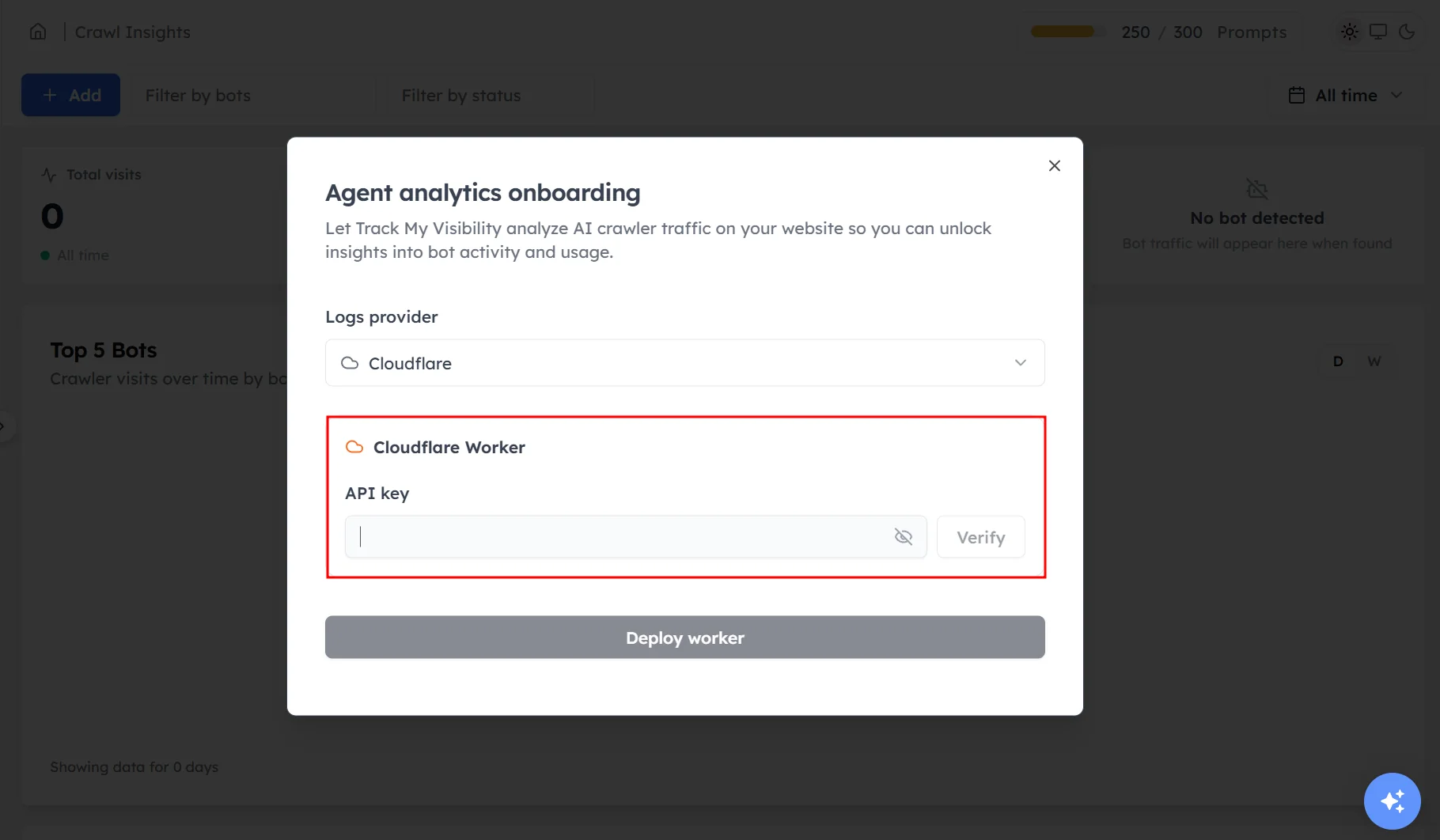
Step 1. Enter your API key#
Enter your Cloudflare API key.
Step 2. Verify the key#
Click verify. Track My Visibility checks that it can reach your Cloudflare account.
Step 3. Deploy the worker#
Deploy the worker, which sends crawler visit data from Cloudflare to Track My Visibility.
How to upload log files#
Use log file uploads if your site doesn't use Cloudflare.
Step 1. Export your server logs#
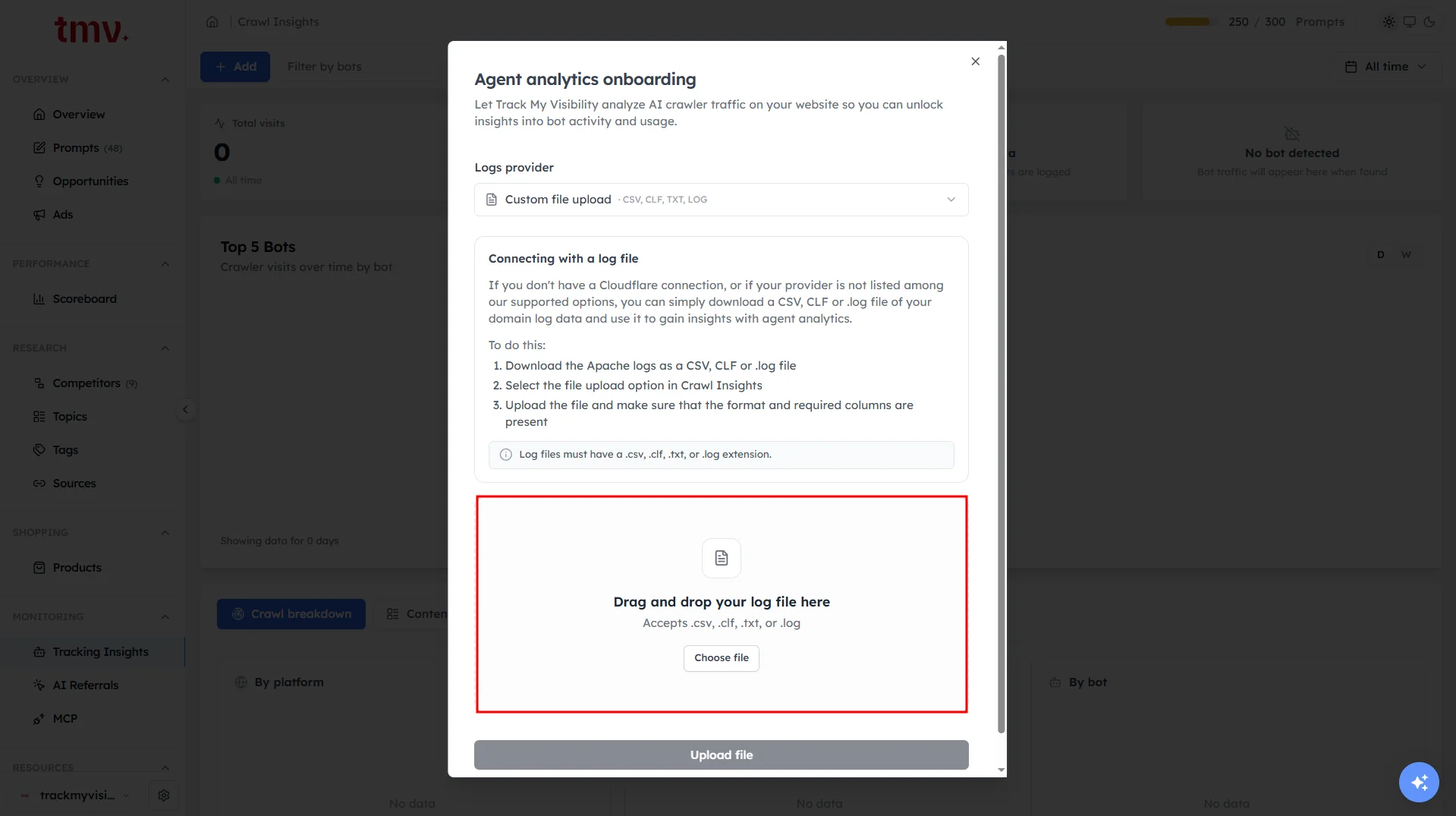
Download your access logs from your host or server. Supported formats are CSV, CLF, TXT and LOG.
Step 2. Upload the files#
Select Custom file upload and upload your log files.
Which option to choose#
- Cloudflare: best if your site already runs through Cloudflare, because data updates automatically and you don't need to upload anything again.
- Custom file upload: best if your site doesn't use Cloudflare, or if you want to analyze a specific period from past logs.
Frequently asked questions#
How do I track AI crawler visits to my website?
Connect your site to Tracking Insights through Cloudflare or by uploading server log files. Track My Visibility then reads the logs and shows which AI crawlers, such as the bots from OpenAI, Anthropic and Perplexity, visit your pages.
Do I need Cloudflare to use Tracking Insights?
No. If your site doesn't use Cloudflare, you can upload access logs from your host or server in CSV, CLF, TXT or LOG format.
Will Tracking Insights show crawler visits from before I connected?
With Cloudflare, data starts from the moment the worker is live. With log uploads, you see the dates covered by the files you upload, so you can include past logs.
Where do I find my server access logs?
Most hosting providers let you download access logs from the hosting control panel or over SFTP. If you can't find them, ask your hosting provider or developer for the raw access logs.
How often should I upload log files?
Upload new log files regularly, such as every week or every month, to keep your crawler data current. Uploaded logs only cover the dates in the files.
Related articles
Last updated 3 Nov 2026
Can't find what you need?
Email support@trackmyvisibility.com with your website, what you were trying to do and what you saw. A screenshot helps.