
Technical fixes
On this page
Technical fixes in the Track My Visibility application checks your robots.txt file and shows which AI crawlers and search bots can access your website. AI models can only cite pages their crawlers can reach, so a blocked crawler means your pages are unlikely to appear in AI answers.
The Technical fixes tab shows which bots are allowed on your site, which are partly blocked and which are fully blocked, and the exact paths each bot can't reach.
How to read the summary#
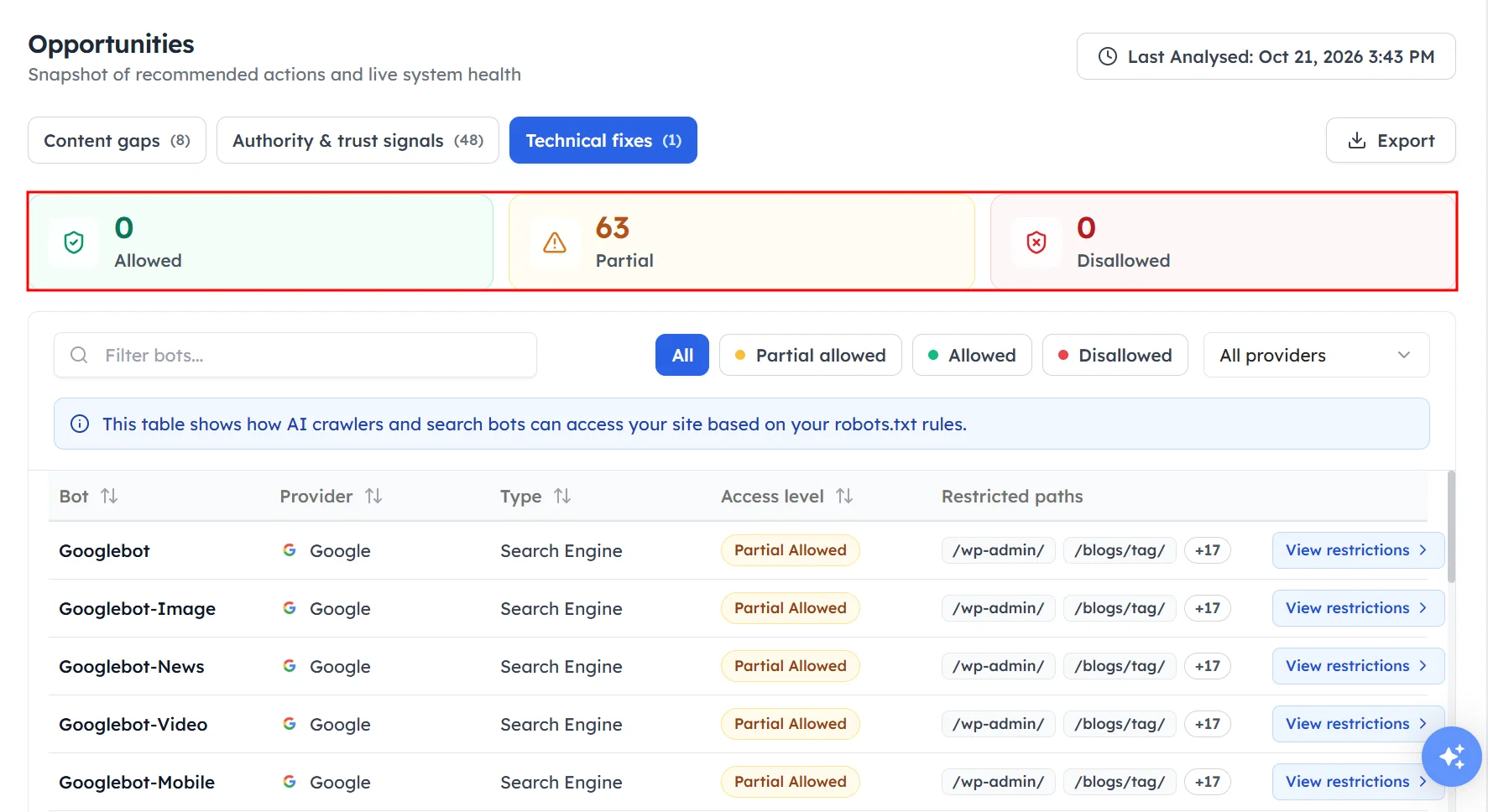
Click Opportunities under Overview in the left sidebar, then select the Technical fixes tab. The three cards at the top count your bots:
- Allowed: the bot can crawl your whole site.
- Partial: the bot can crawl most of your site, but some paths are blocked.
- Disallowed: the bot is blocked from your whole site.
How to read the bot table#
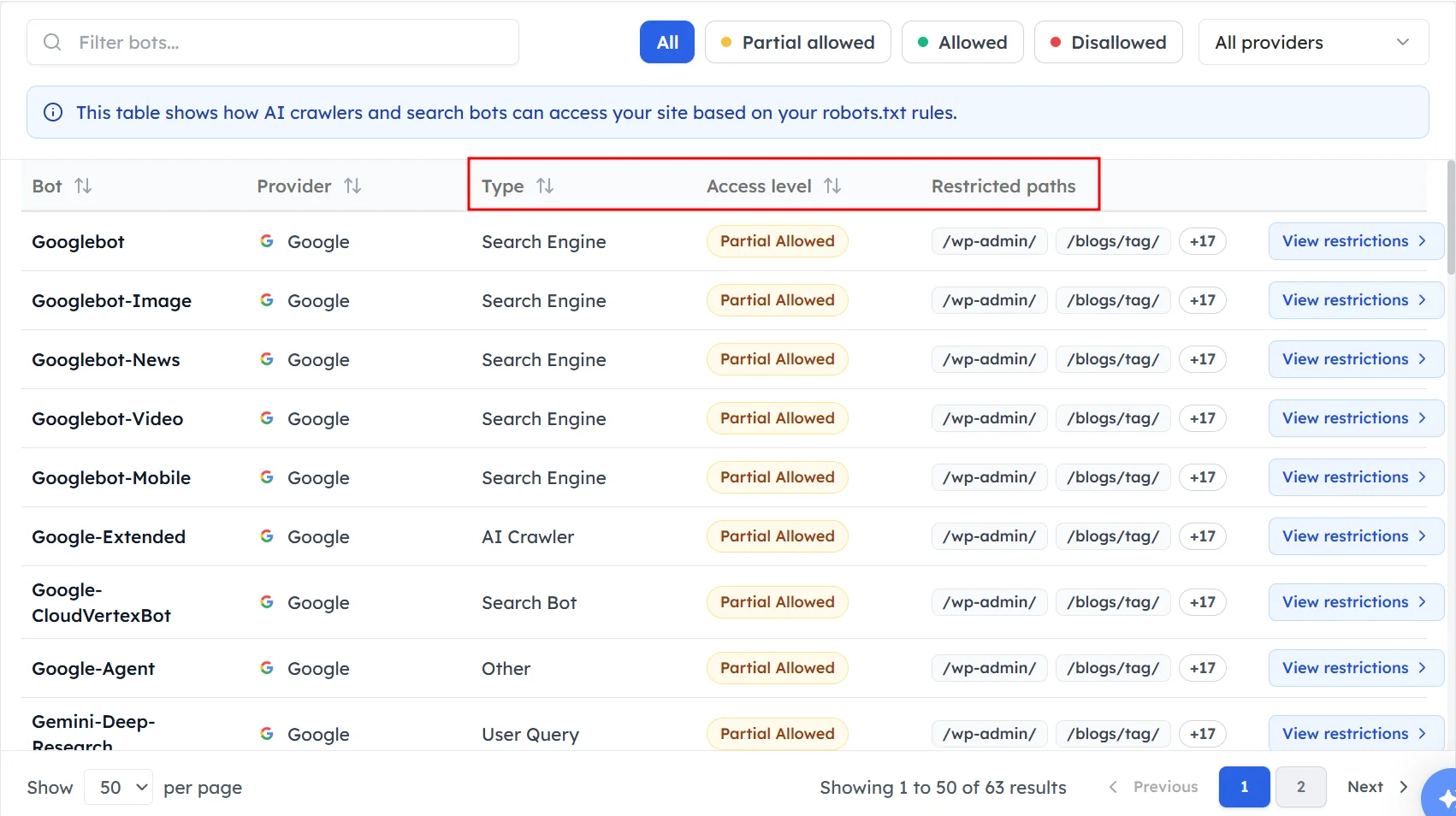
Each row is one bot. The columns show:
- Bot: the crawler's name, such as
Googlebotor Gemini-Deep-Research. - Provider: the company that runs it, such as Google or OpenAI.
- Type: what the bot is used for, such as Search Engine, AI Crawler or User Query.
- Access level: Allowed, Partial Allowed or Disallowed.
- Restricted paths: the folders or pages the bot can't reach.
How to find and fix a blocked bot#
Step 1. Filter the list#
Type a bot name in Filter bots, or use the access filters to show only Partial allowed, Allowed or Disallowed bots. Use All providers to show one company's bots.
Step 2. Check the restrictions#
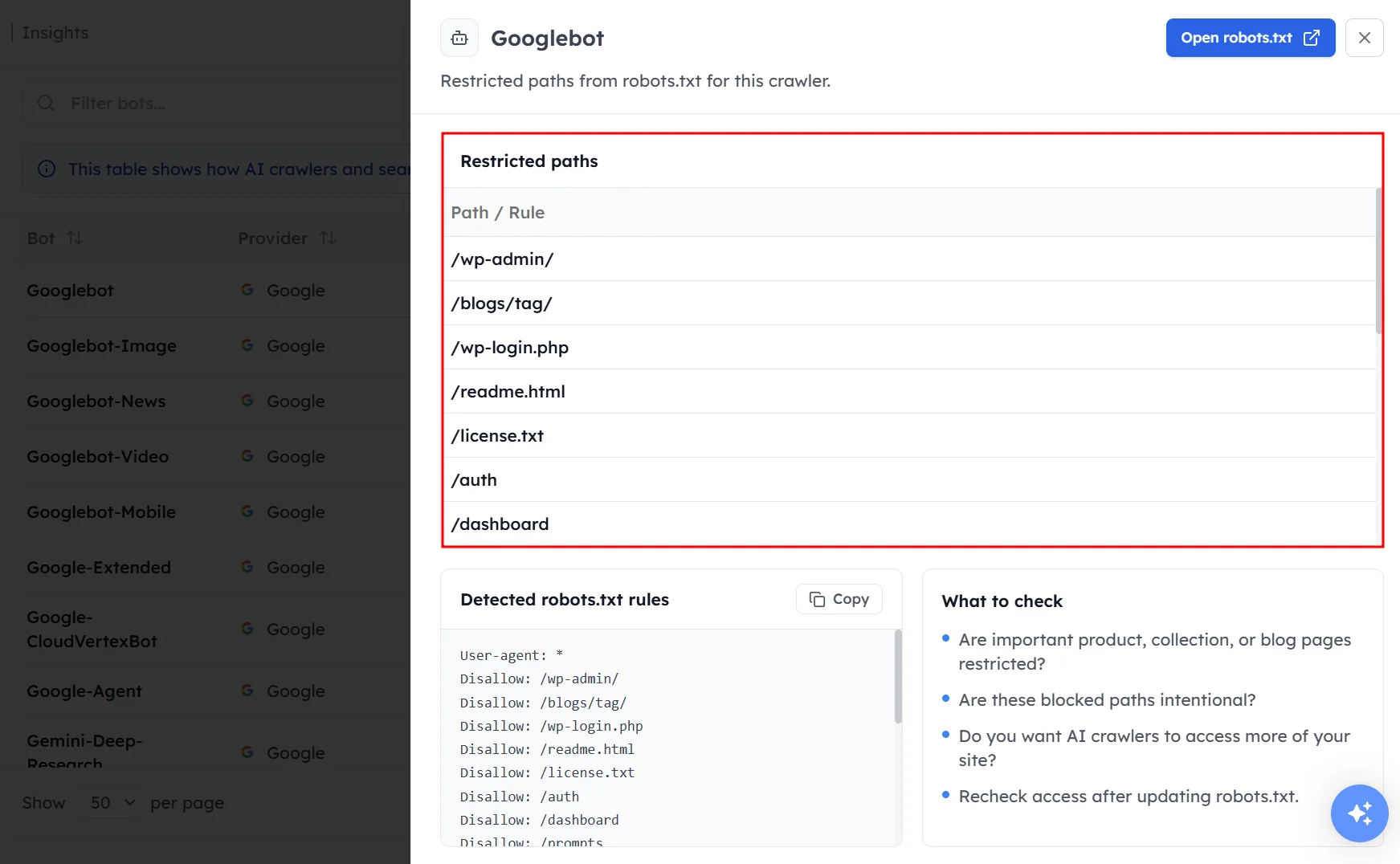
Click View restrictions on a row to see every path that bot is blocked from. Check whether any of those paths hold content you want AI models to read.
Step 3. Update your robots.txt#
Change the rules for that bot in your robots.txt file, or ask your developer to do it. The bot's access level updates the next time your opportunities are analyzed.
Which bots to allow#
Most brands that want AI visibility allow these types of bots:
- Search bots: crawlers that index pages for AI search, such as the bots behind ChatGPT search and Perplexity.
- User-query bots: bots that fetch a page live when a user asks a question.
- Search engine crawlers: traditional crawlers such as
Googlebot, which also feed Google AI Overviews.
Training bots are a separate decision. Blocking them doesn't stop AI search tools from citing your pages, but it can limit what future models learn about your brand.
Frequently asked questions#
How do I check if AI crawlers can access my website?
Open the Technical fixes tab under Opportunities. It reads your robots.txt file and shows each AI crawler and search bot as Allowed, Partial or Disallowed, with the paths it can't reach.
Should I block GPTBot or other AI training bots?
Blocking training bots is a business decision. Blocking them limits what future AI models learn from your content, but it doesn't stop AI search bots from fetching and citing your pages. Keep search and user-query bots allowed if you want AI visibility.
What does Partial Allowed mean?
Partial Allowed means the bot can crawl most of your website, but some paths are blocked. This is often intentional for admin or checkout pages, so check the restricted paths for important content.
Does robots.txt show which bots actually visit my site?
No. Robots.txt only shows which bots are allowed. To see which bots actually visit your pages and how often, connect your site to Tracking Insights. See Reading crawl insights.
How long does it take for robots.txt changes to show in Track My Visibility?
The bot's access level updates the next time your opportunities are analyzed. AI crawlers also need time to revisit your site after you change the rules.
Related articles
Last updated 3 Nov 2026
Can't find what you need?
Email support@trackmyvisibility.com with your website, what you were trying to do and what you saw. A screenshot helps.