
Navigation reference
On this page
This page shows where every page and setting is in the Track My Visibility application. Use it when you can't find a page, a filter or a setting, or when you want a quick overview of what each section of the app does.
The app has three main areas: the left sidebar, which holds every page; the top bar, which shows your prompt usage and plan status; and the filters at the top of each data page, which control what you see.
The left sidebar#
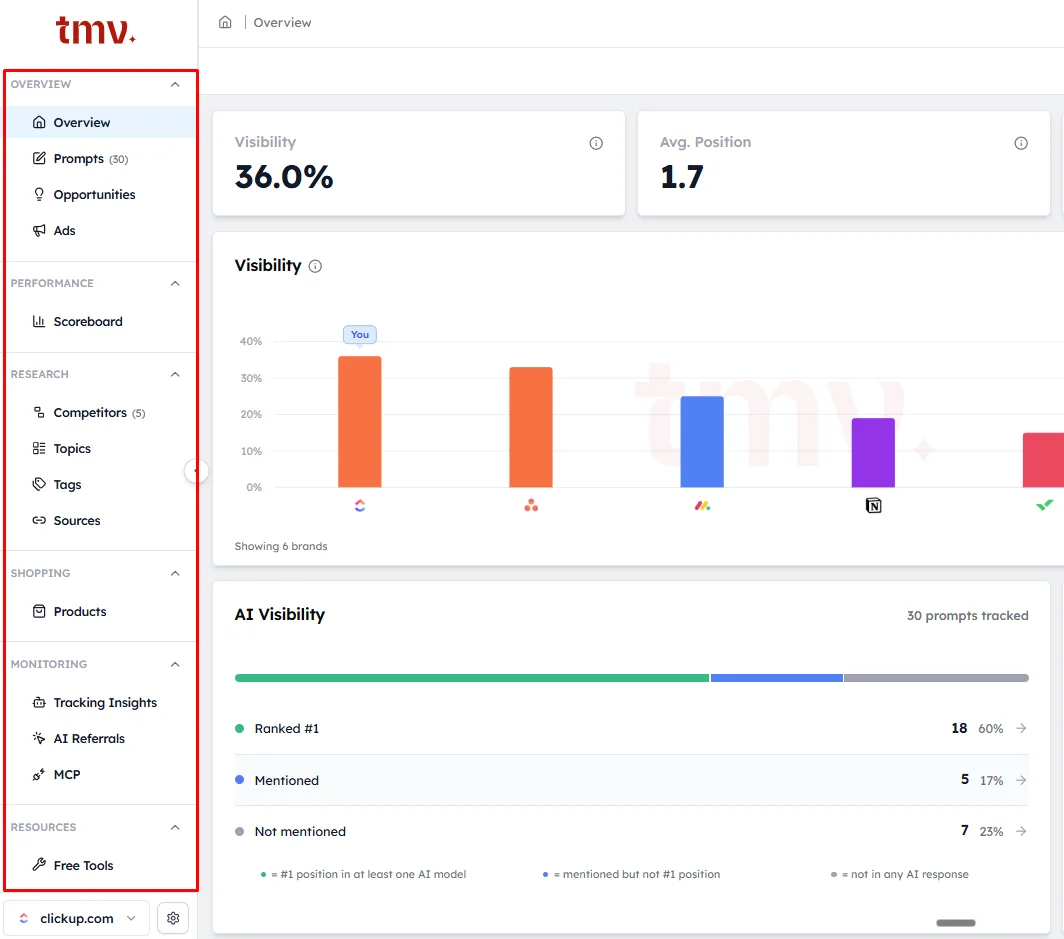
The sidebar groups pages into sections. Click the arrow next to a section name to collapse or expand it. Click the arrow on the sidebar's edge to hide the whole sidebar.
Overview
- Overview: your main results for visibility, position, sentiment and share of voice.
- Prompts: all your tracked prompts and how you perform on each. The number shows how many active prompts you have.
- Opportunities: content gaps, authority and trust signals, and technical fixes to improve your visibility.
- Ads: brands that advertise on your prompts.
Performance
- Scoreboard: how you rank against your competitors.
Research
- Competitors: the brands you track against. The number shows how many you track.
- Topics: the themes your prompts are grouped into.
- Tags: your custom labels for prompts.
- Sources: the websites and pages AI models cite.
Shopping
- Products: the products that appear in AI shopping answers.
Monitoring
- Tracking Insights: which AI crawlers visit your site.
- AI Referrals: visits to your site that come from AI platforms.
- MCP: connect AI tools such as Claude and ChatGPT to your Track My Visibility data.
Resources
- Free Tools: free checklists, reports and generators.
The top bar#
The top bar shows:
- Breadcrumb: the page you're on. Click the home icon to go back to the Overview.
- Prompt usage: how many prompts you've used out of your plan's quota, for example 249 / 300.
- Plan status: how many days are left in your trial or billing period.
- Theme: switch between light mode, system setting and dark mode.

Filters and date range#
Most data pages have filters at the top:
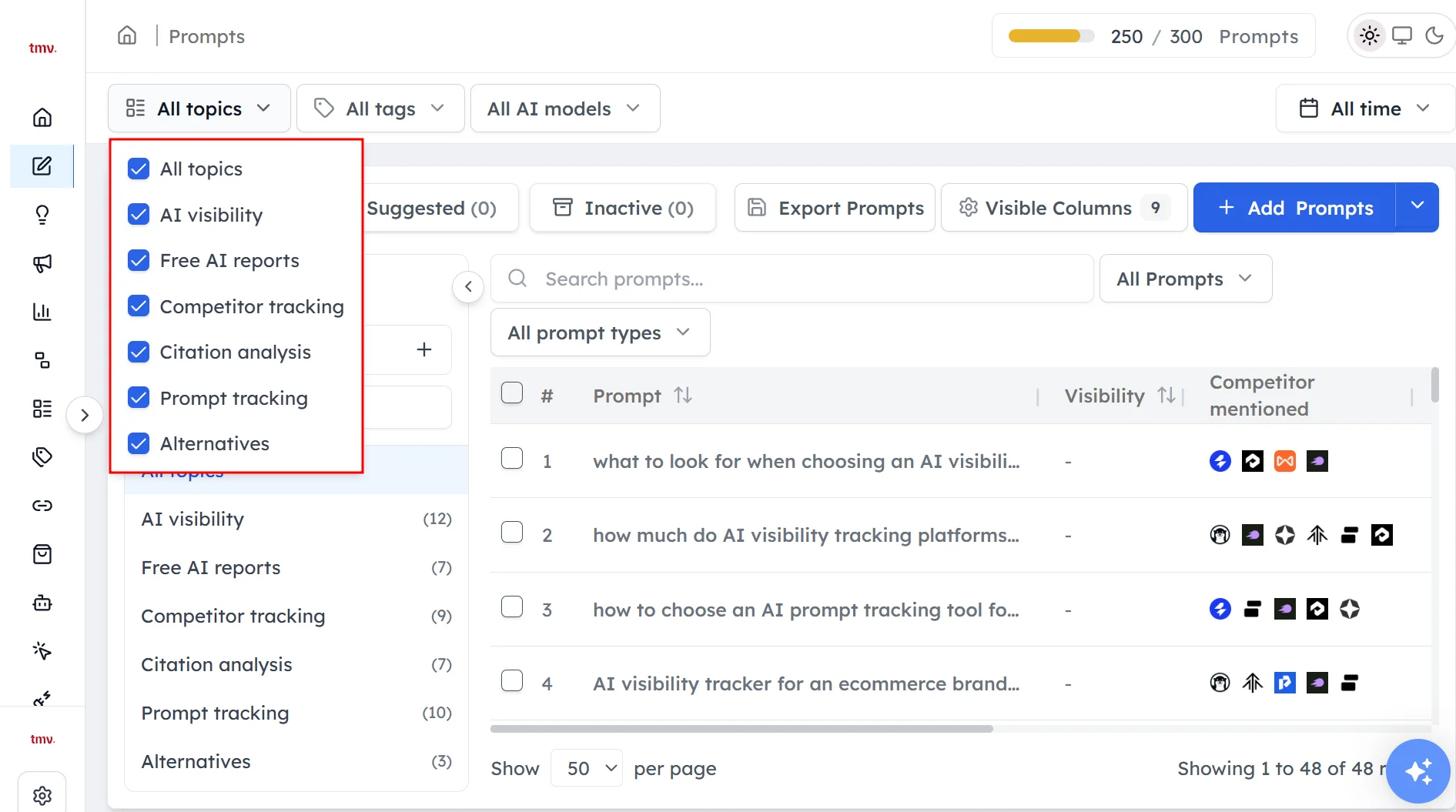
- All topics: show data for selected topics only.
- All tags: show data for selected tags only.
- All AI models: show data for selected AI models only.
Each filter opens a list with checkboxes. Untick what you want to hide.
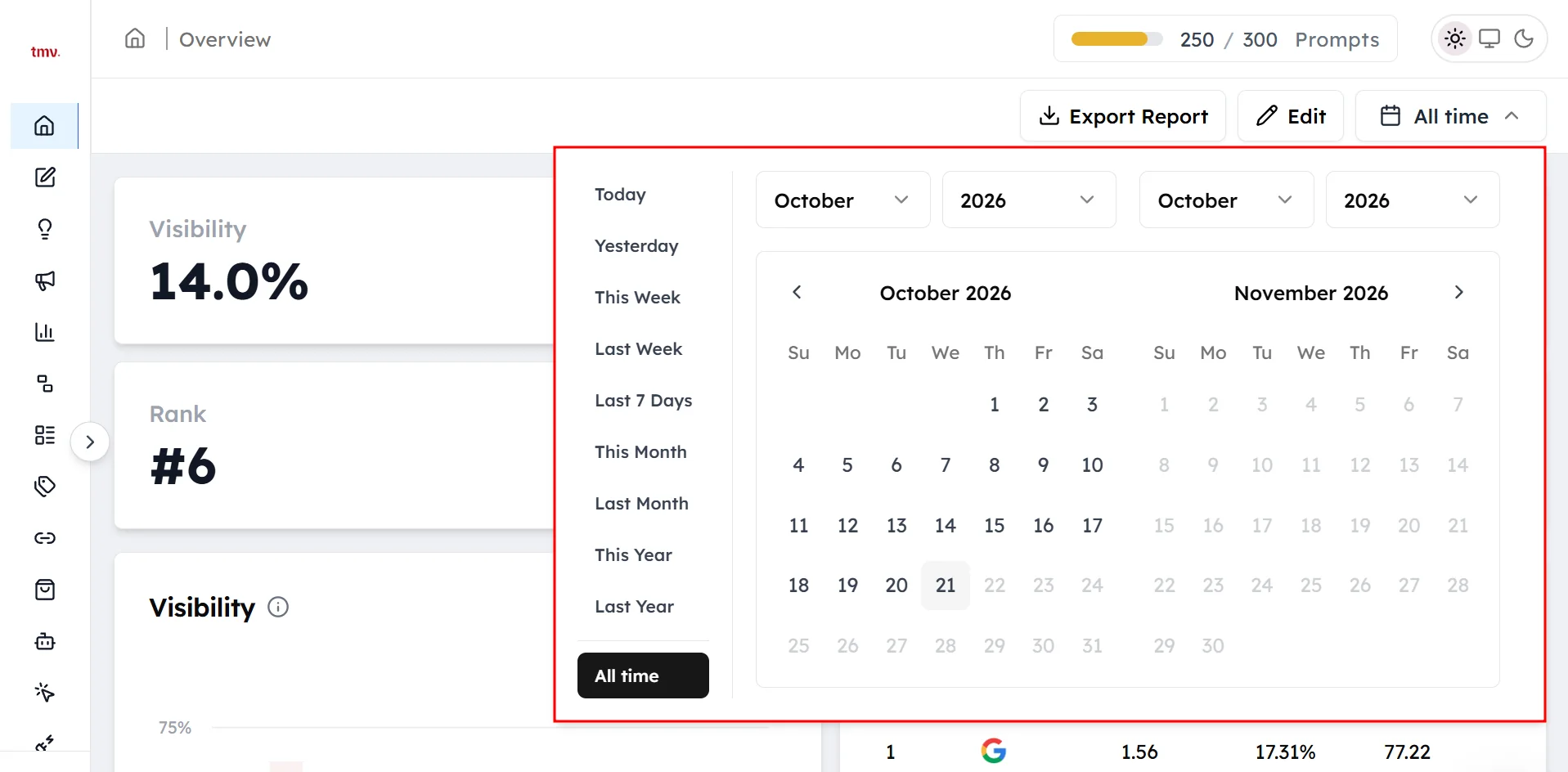
The date picker sits on the right. Choose a preset, such as Today, Last 7 Days, This Month or All time, or pick a start and end date on the calendar.
Switching websites#
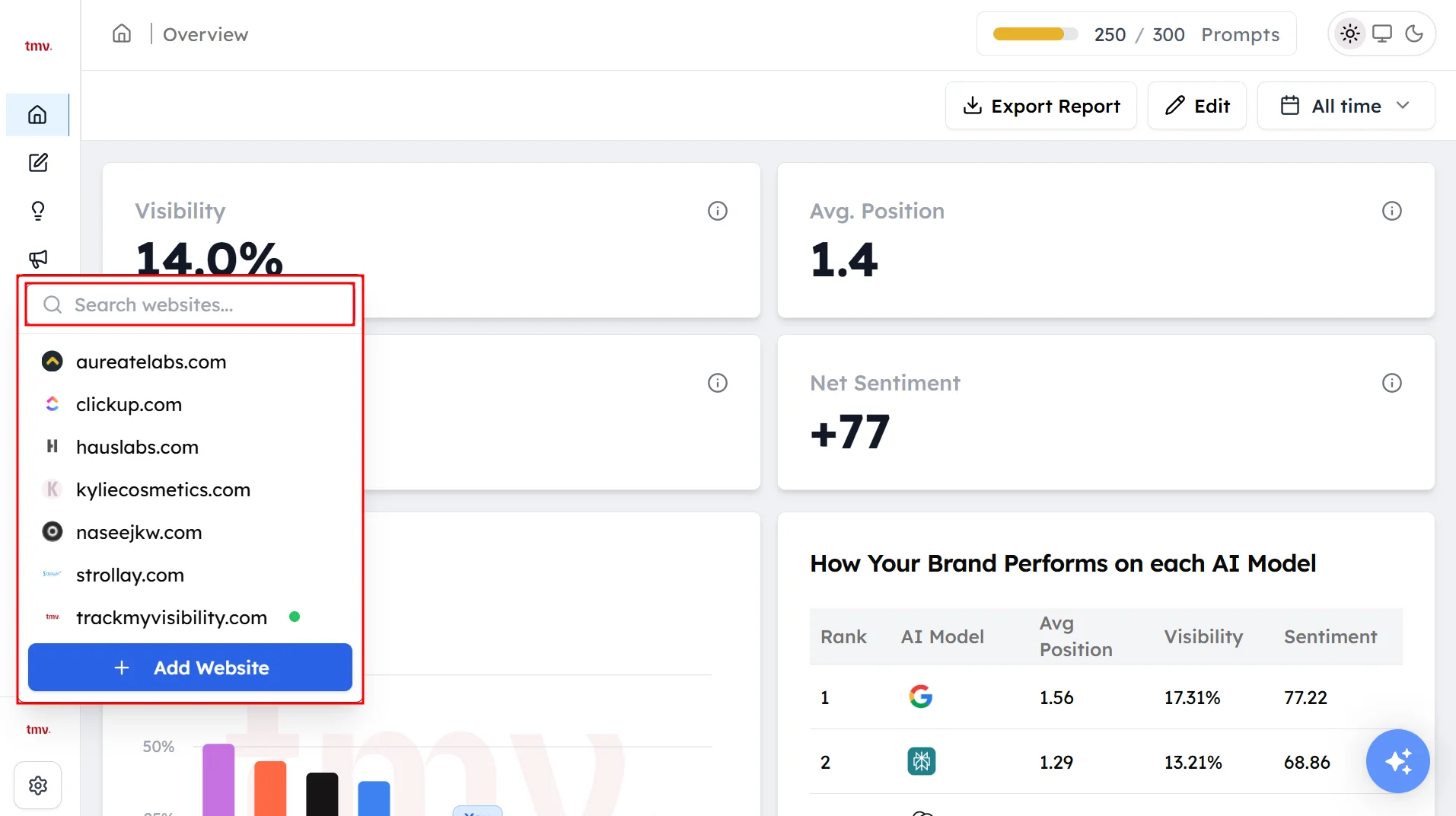
Your current website shows at the bottom of the sidebar. Click it to see all your websites. Search for a website or click one to switch to it. Click Add Website to set up a new one.
Settings menu#
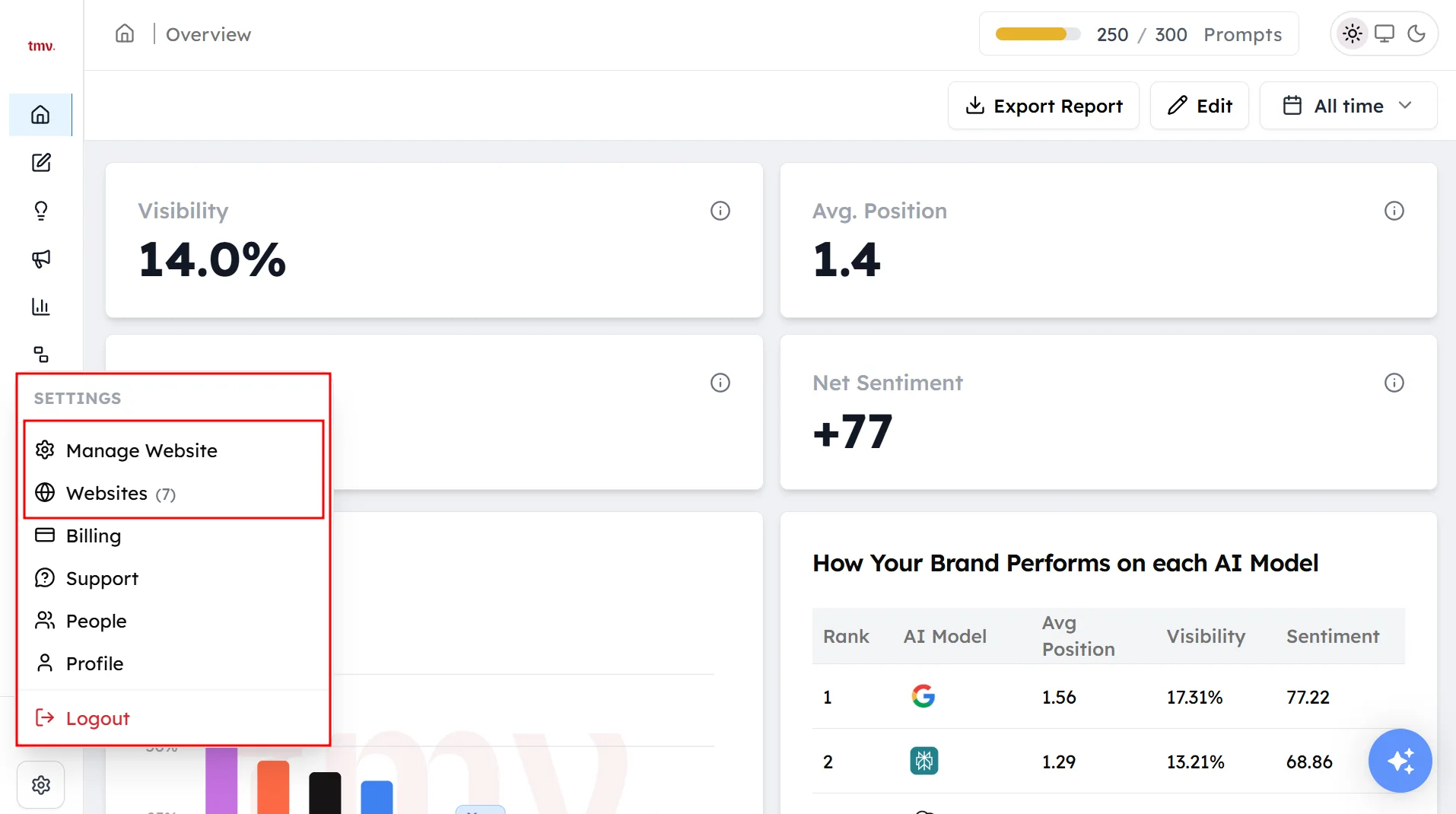
Click the settings icon next to the website switcher. You'll see:
- Manage Website: edit the current website's details.
- Websites: see and manage all your websites.
- Support: contact the Track My Visibility team.
- Profile: edit your account details.
- Logout: sign out.
Frequently asked questions#
Where do I find my prompts in Track My Visibility?
Click Prompts under Overview in the left sidebar. The number next to Prompts shows how many active prompts you have, and the page lists every tracked prompt with its results.
How do I switch between websites in Track My Visibility?
Click your current website at the bottom of the left sidebar, then search for or click the website you want. All pages and filters then show data for that website.
Where are the website settings?
Click the settings icon next to the website switcher at the bottom of the sidebar, then click Manage Website to edit the current website's details, such as brand name variations and additional domains.
How do I see results for one AI model only?
Open the All AI models filter at the top of a data page and untick the models you want to hide. The page then shows results for the remaining models only.
Why does my dashboard show little or no data?
Your date range may be too short. Prompts don't run every day, so a range such as Today can show little data. Choose Last 7 Days or a longer range to see your results.
How do I check how many prompts I have left?
Look at the prompt usage meter in the top bar. It shows how many prompts you've used out of your plan's quota.
Related articles
Last updated 3 Nov 2026
Can't find what you need?
Email support@trackmyvisibility.com with your website, what you were trying to do and what you saw. A screenshot helps.