
Website setup
On this page
- How to start adding a website
- Step 1. Open the website switcher
- Step 2. Click Add Website
- How to set up your website details
- Step 1. Enter your website URL
- Step 2. Click Analyze Website
- Step 3. Check your brand name variations
- Step 4. Choose your country
- Step 5. Choose your language
- Step 6. Click Continue
- How to select your topics
- Step 1. Wait for topic suggestions
- Step 2. Select your topics
- Step 3. Add a custom topic (optional)
- Step 4. Click Continue
- How to choose prompts and AI models
- Step 1. Set how many prompts you want
- Step 2. Choose AI models to track
- Step 3. Click Generate Prompts
- How to review your prompts
- Step 1. Select the prompts you want
- Step 2. Add a custom prompt (optional)
- Step 3. Click Continue
- How to select your competitors
- Step 1. Select your competitors
- Step 2. Add a competitor (optional)
- Step 3. Click Complete Setup
- What happens after setup
- Frequently asked questions
Website setup is the five-step flow you use to add a website to the Track My Visibility application. Track My Visibility analyzes your site and suggests brand name variations, topics, prompts and competitors, and you review each suggestion before tracking starts.
The five steps are Website, Topics, Prompts, Review and Competitors.
How to start adding a website#
Your first website setup starts right after you sign up. To add another website later, use the website switcher.
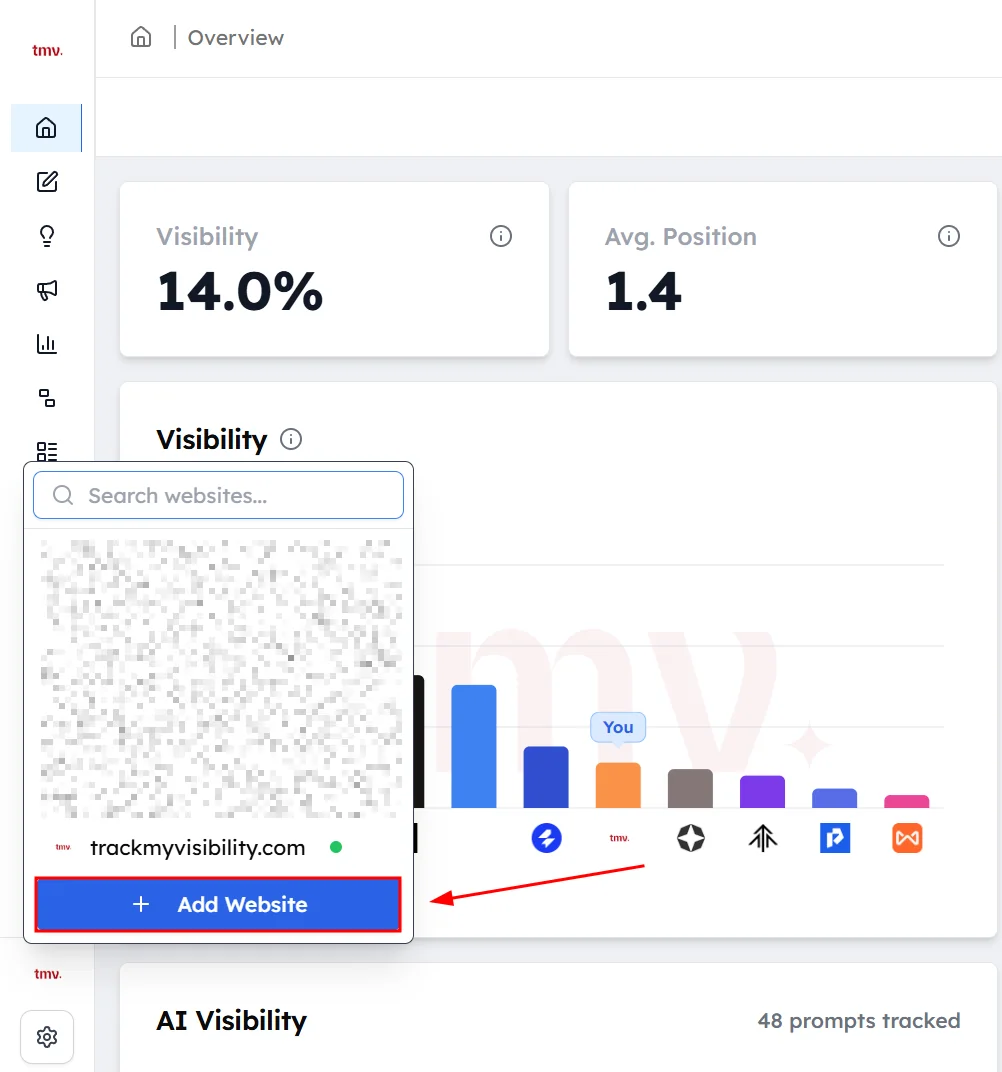
Step 1. Open the website switcher#
Click the website name at the bottom of the left sidebar. A list of your websites opens.
Step 2. Click Add Website#
Click Add Website at the bottom of the list. The setup screen opens.
How to set up your website details#
Step 1. Enter your website URL#
Type your domain in Website URL, for example yourcompany.com.
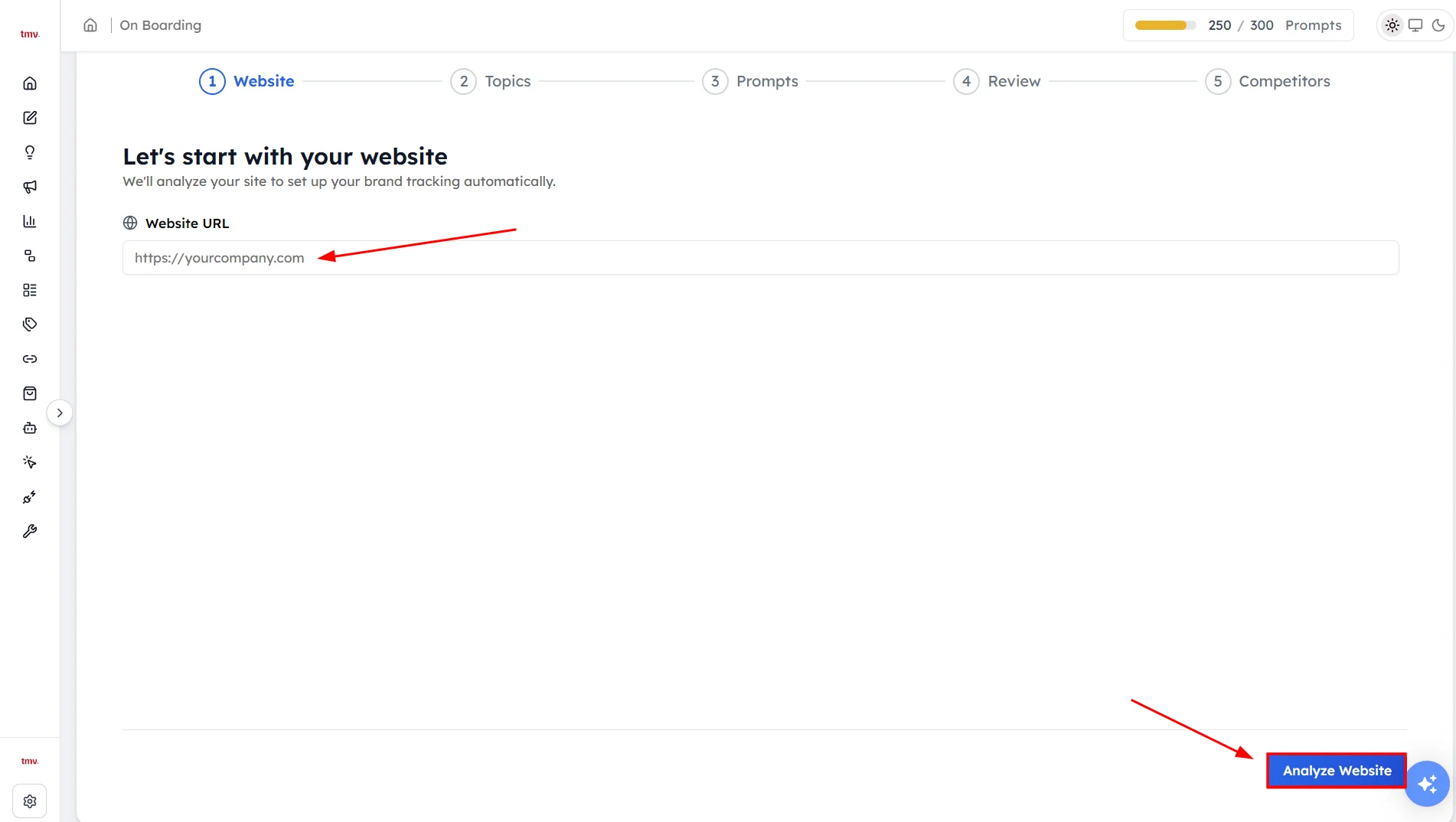
Step 2. Click Analyze Website#
Track My Visibility reads your site to learn what your business does. This takes a few seconds.
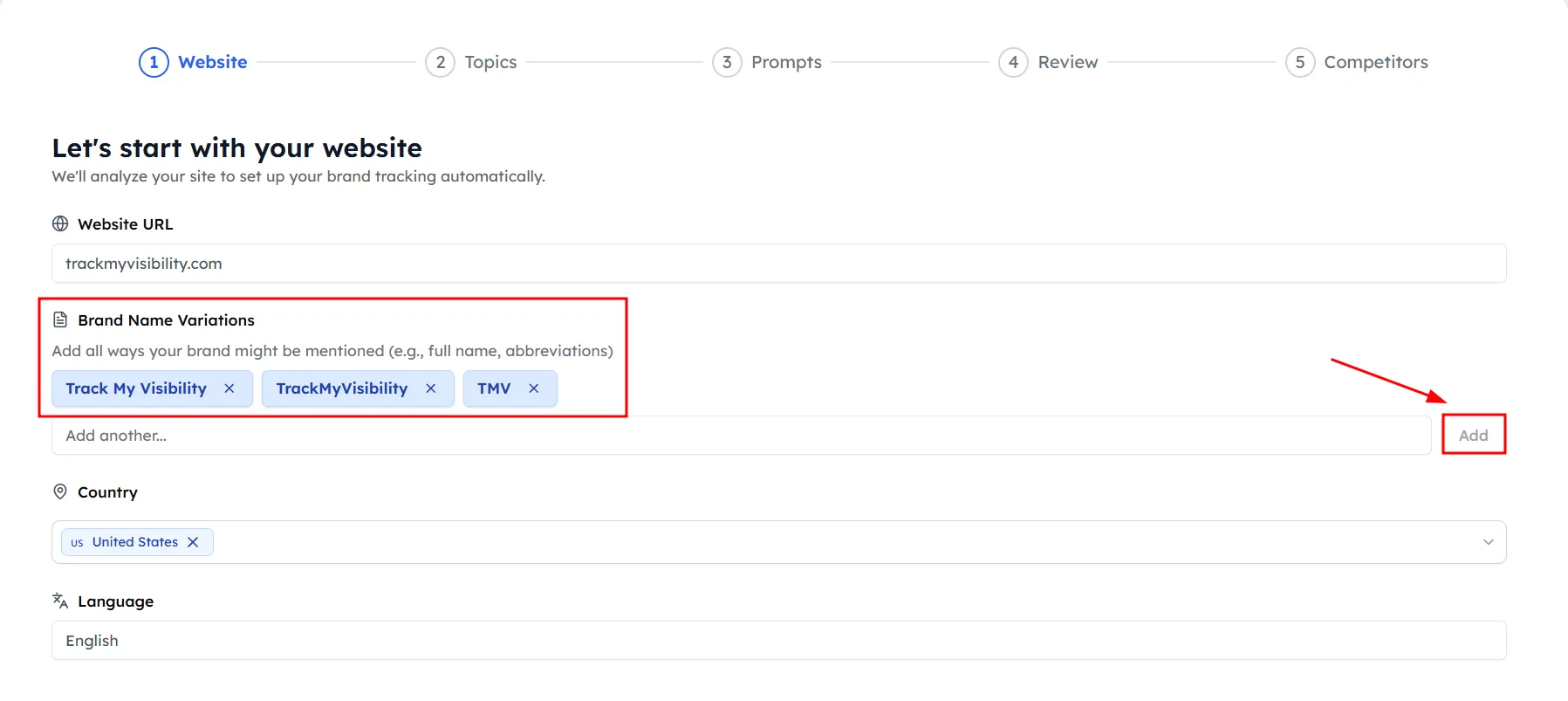
Step 3. Check your brand name variations#
Brand Name Variations lists the names AI models might use for your brand. Track My Visibility fills this list in for you.
To add a name, type it in Add another... and click Add. To remove a name, click the x next to it. Add every version people use, such as your full name, short name, legal name, product names and common misspellings.
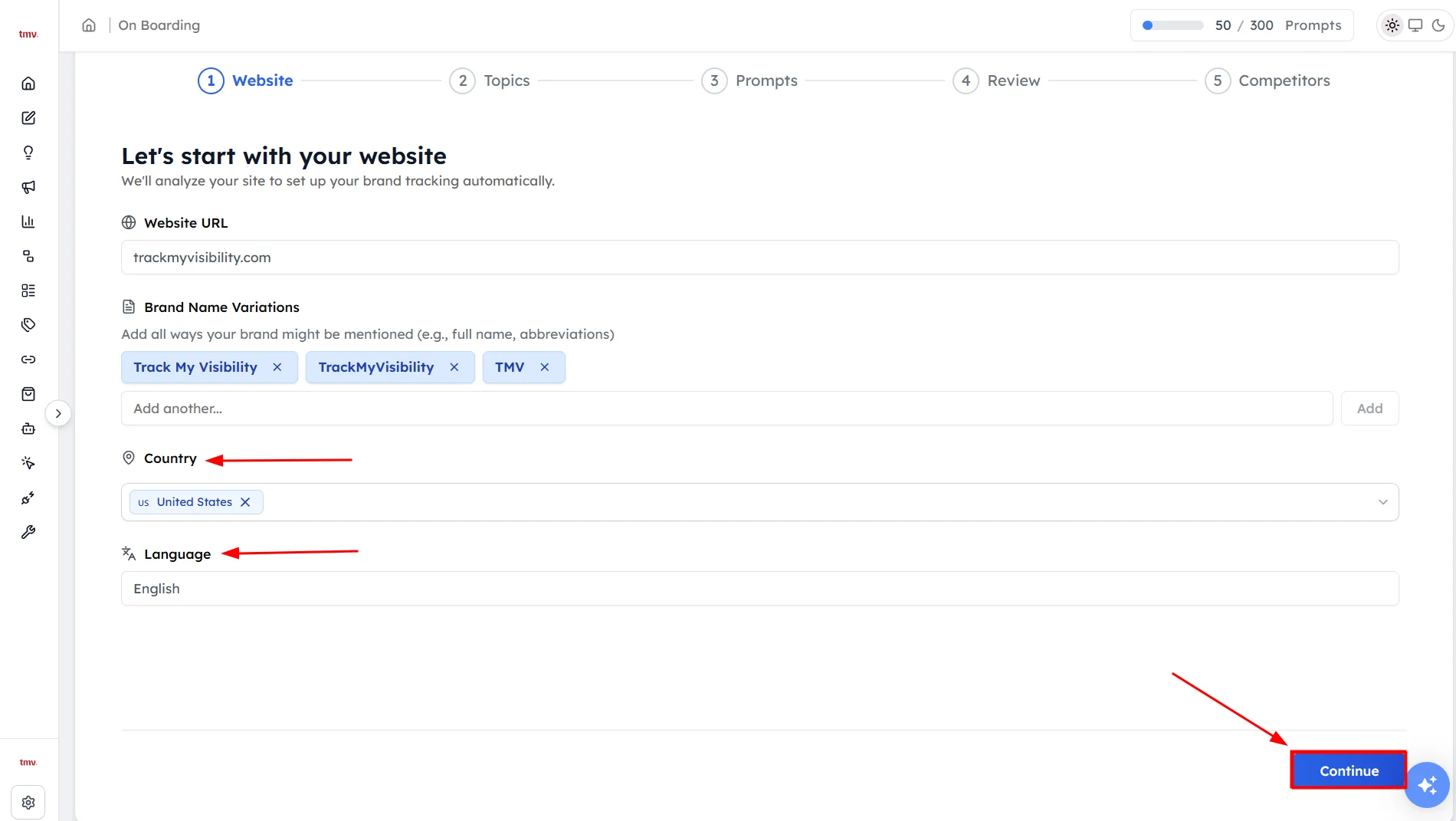
Step 4. Choose your country#
Select the country you want to track in Country. Prompts run as if a user in that country asked them. Track My Visibility suggests a country based on your site, so change it if your main market is somewhere else.
Step 5. Choose your language#
Select the language for your prompts in Language.
Step 6. Click Continue#
How to select your topics#
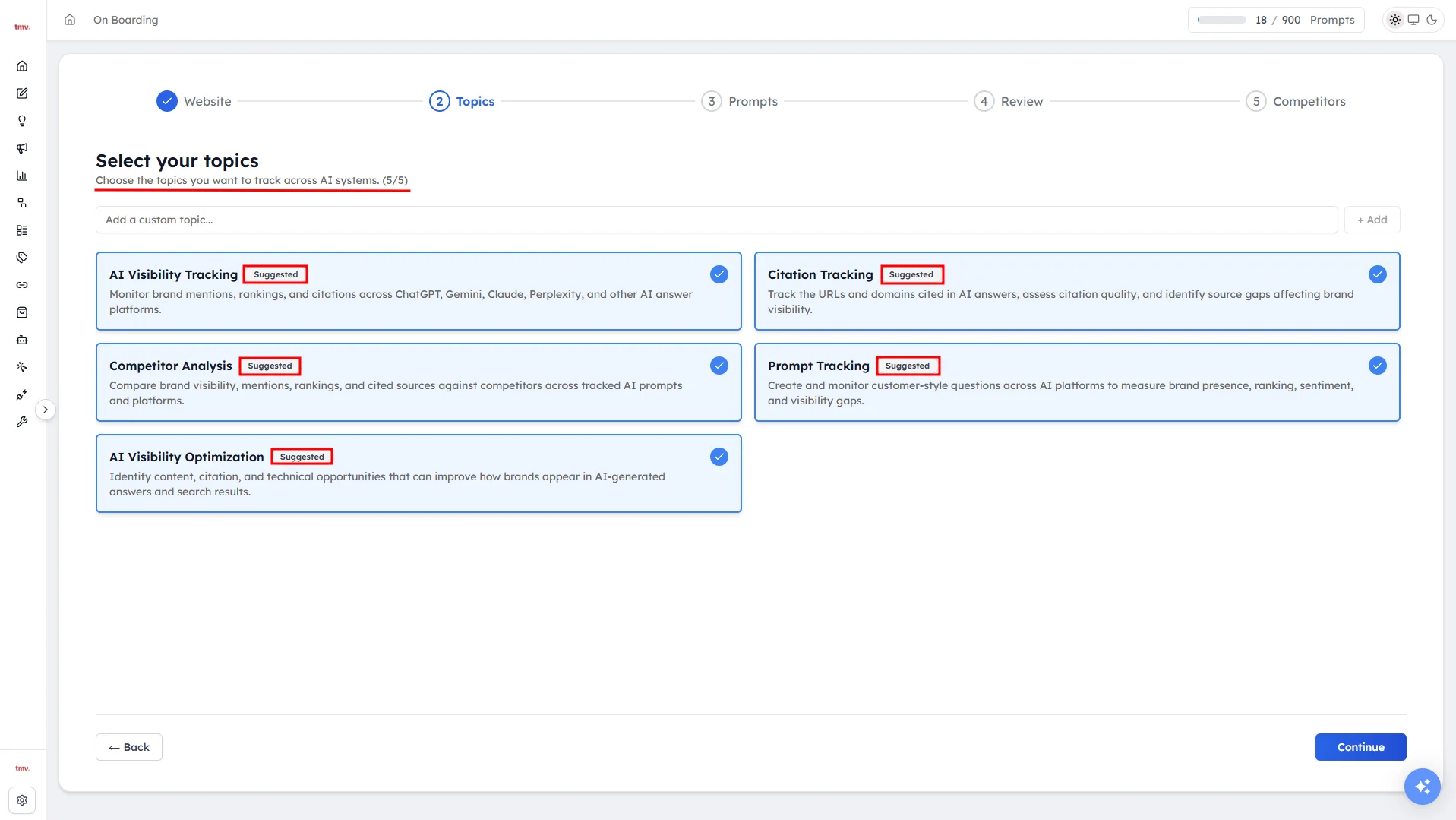
Topics are the main themes of your business, and each prompt belongs to one topic.
Step 1. Wait for topic suggestions#
Track My Visibility uses your business details to suggest topics. This takes a few seconds.
Step 2. Select your topics#
Suggested topics show a Suggested label. Click a topic to select or unselect it. The counter next to the heading shows how many topics you've selected and the maximum you can pick.
Step 3. Add a custom topic (optional)#
Type a topic name in Add a custom topic... and click + Add.
Step 4. Click Continue#
How to choose prompts and AI models#
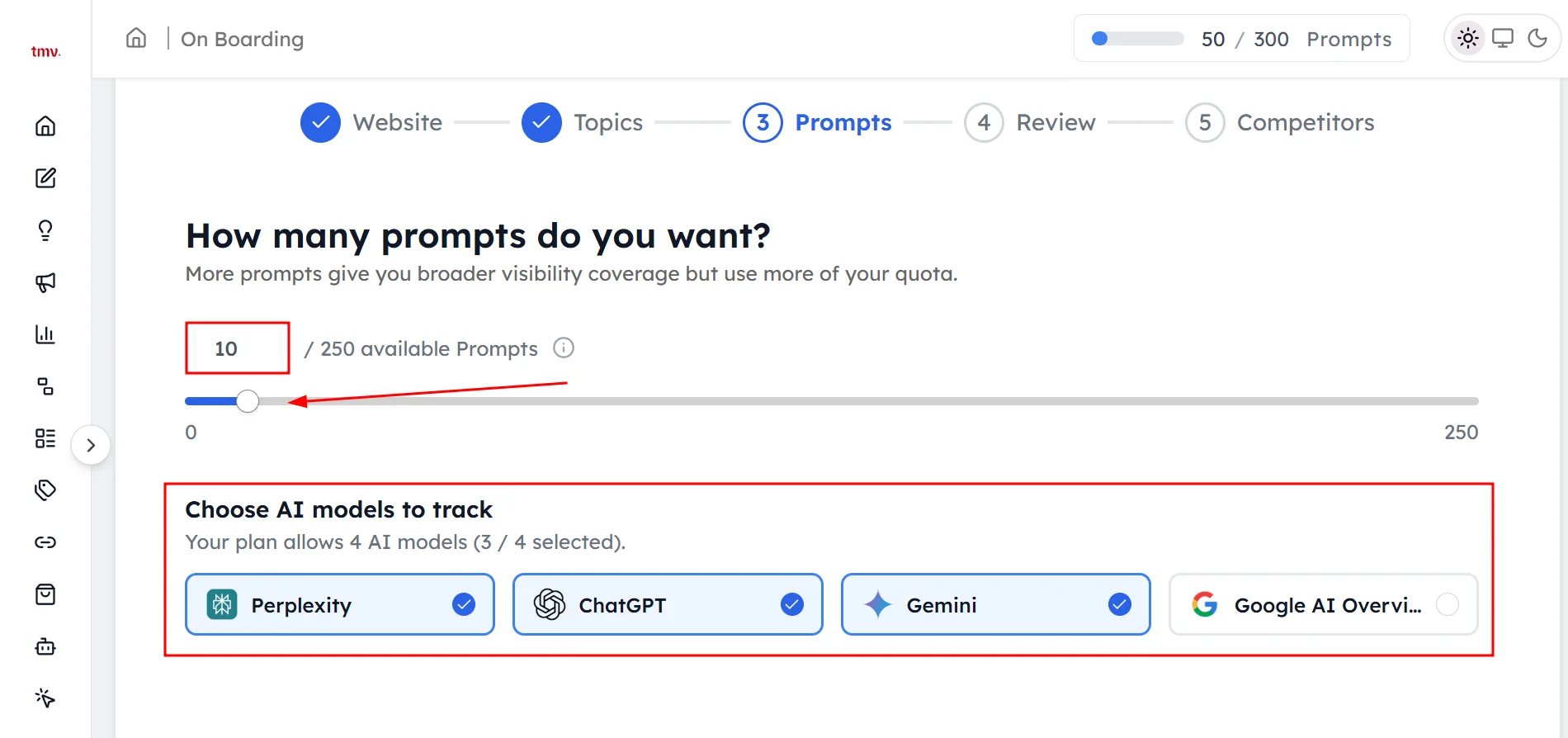
Step 1. Set how many prompts you want#
Type a number or drag the slider. The maximum is the number of prompts left in your quota. More prompts give you broader coverage but use more of your quota.
Step 2. Choose AI models to track#
Select the AI models you want to track: Perplexity, ChatGPT, Gemini or Google AI Overviews. The counter shows how many AI models your plan allows.
Step 3. Click Generate Prompts#
Track My Visibility writes prompts for your selected topics.
How to review your prompts#
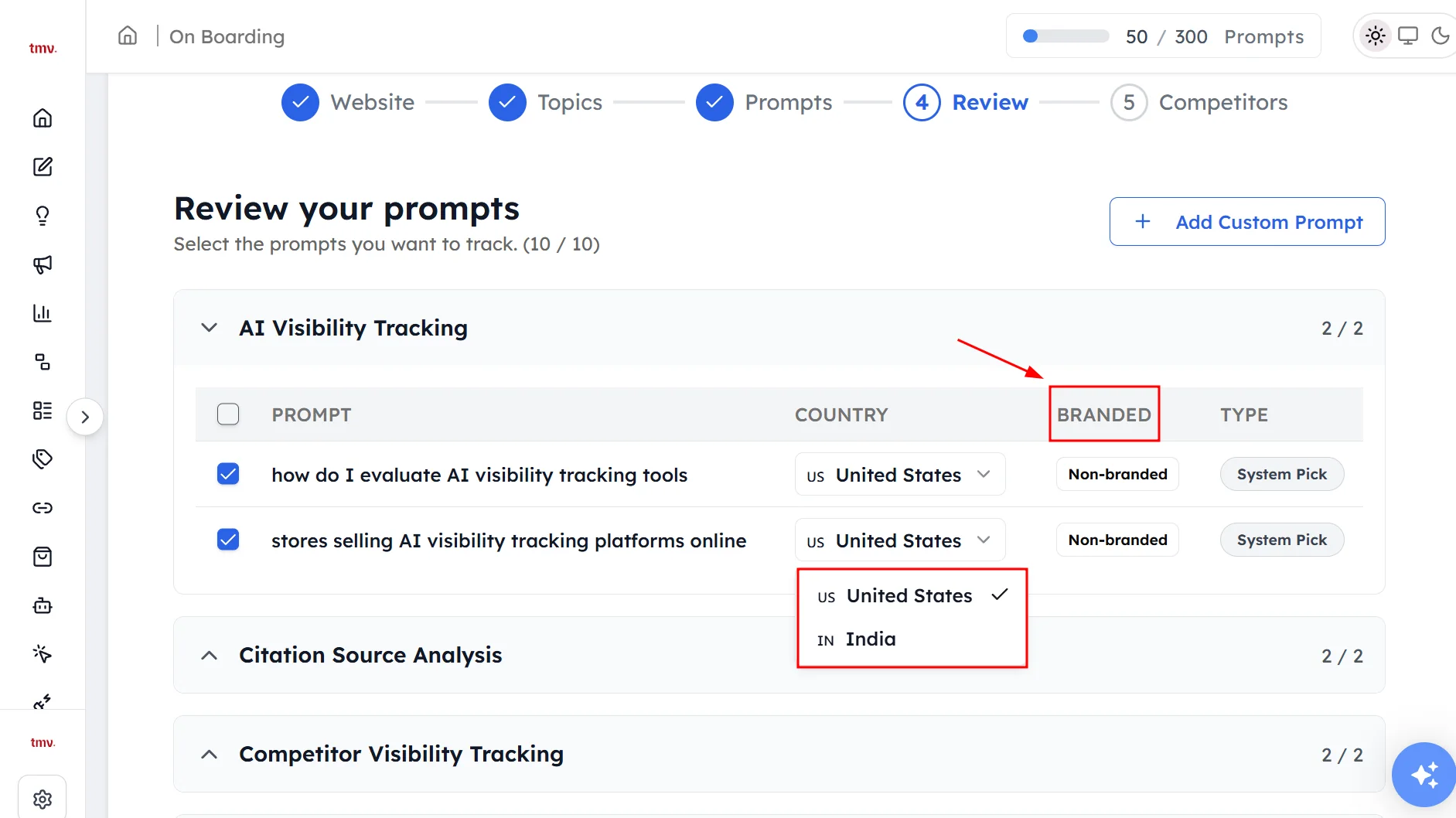
The Review step lists every suggested prompt, grouped by topic. For each prompt, you'll see:
- Prompt: the question that will be asked.
- Country: the country the prompt runs in. You can change it for each prompt.
- Branded: whether the prompt names your brand (Branded) or not (Non-branded).
- Type: where the prompt came from, such as System Pick.
Step 1. Select the prompts you want#
Tick the prompts you want to track, and untick the ones you don't.
Step 2. Add a custom prompt (optional)#
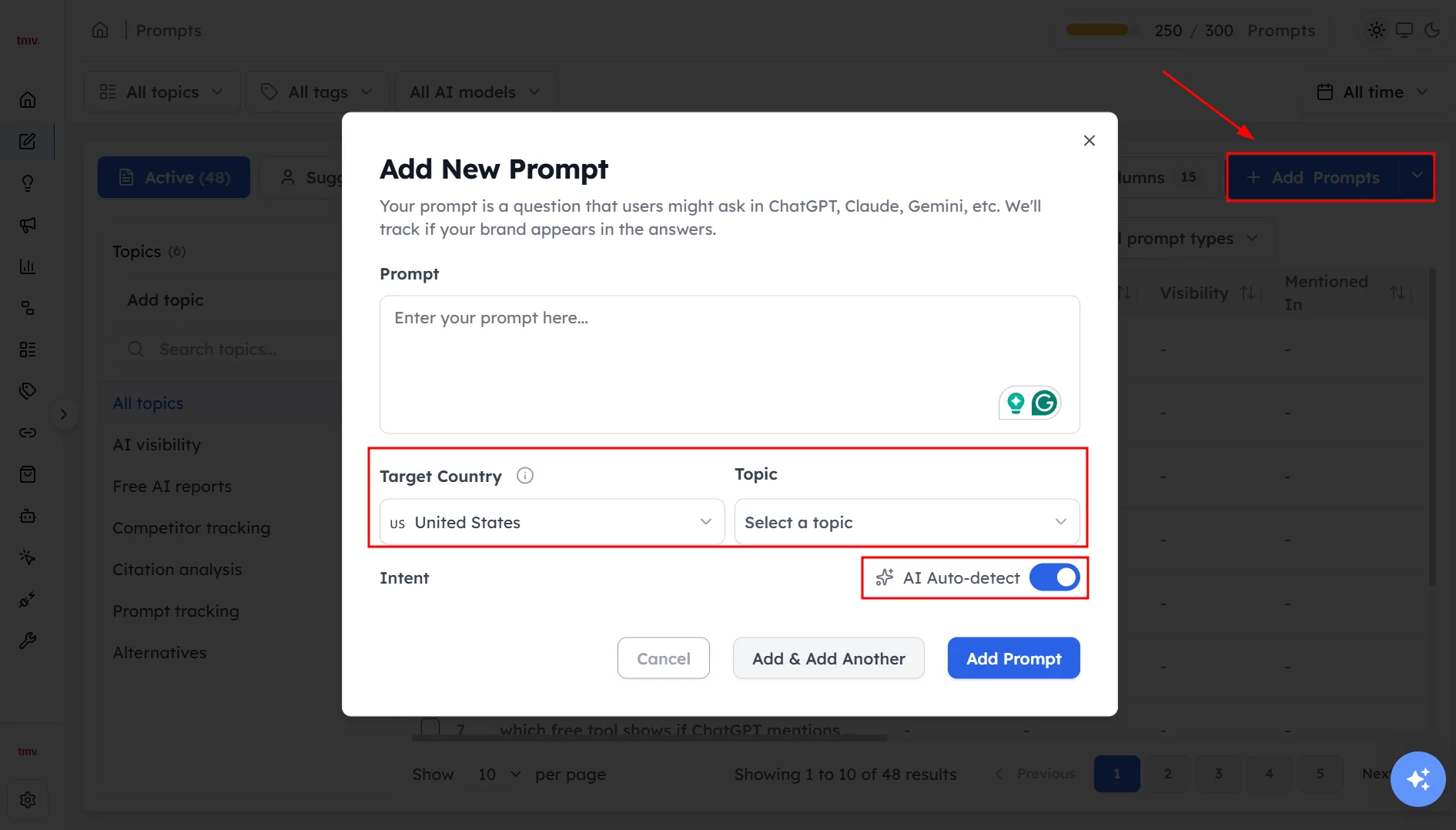
Click Add Custom Prompt and fill in these fields:
- Prompt Text: your question.
- Target Country: the country the prompt runs in.
- Topic: the topic the prompt belongs to.
- Intent: leave AI Auto-detect on, or turn it off to set the intent yourself.
Click Add Prompt.
Step 3. Click Continue#
How to select your competitors#
Track My Visibility suggests competitors based on your site and topics.
Step 1. Select your competitors#
Suggested competitors show a Suggested label. Tick the ones you want to track, and untick the rest.
Step 2. Add a competitor (optional)#
Click + Add Competitor and enter the competitor's details.
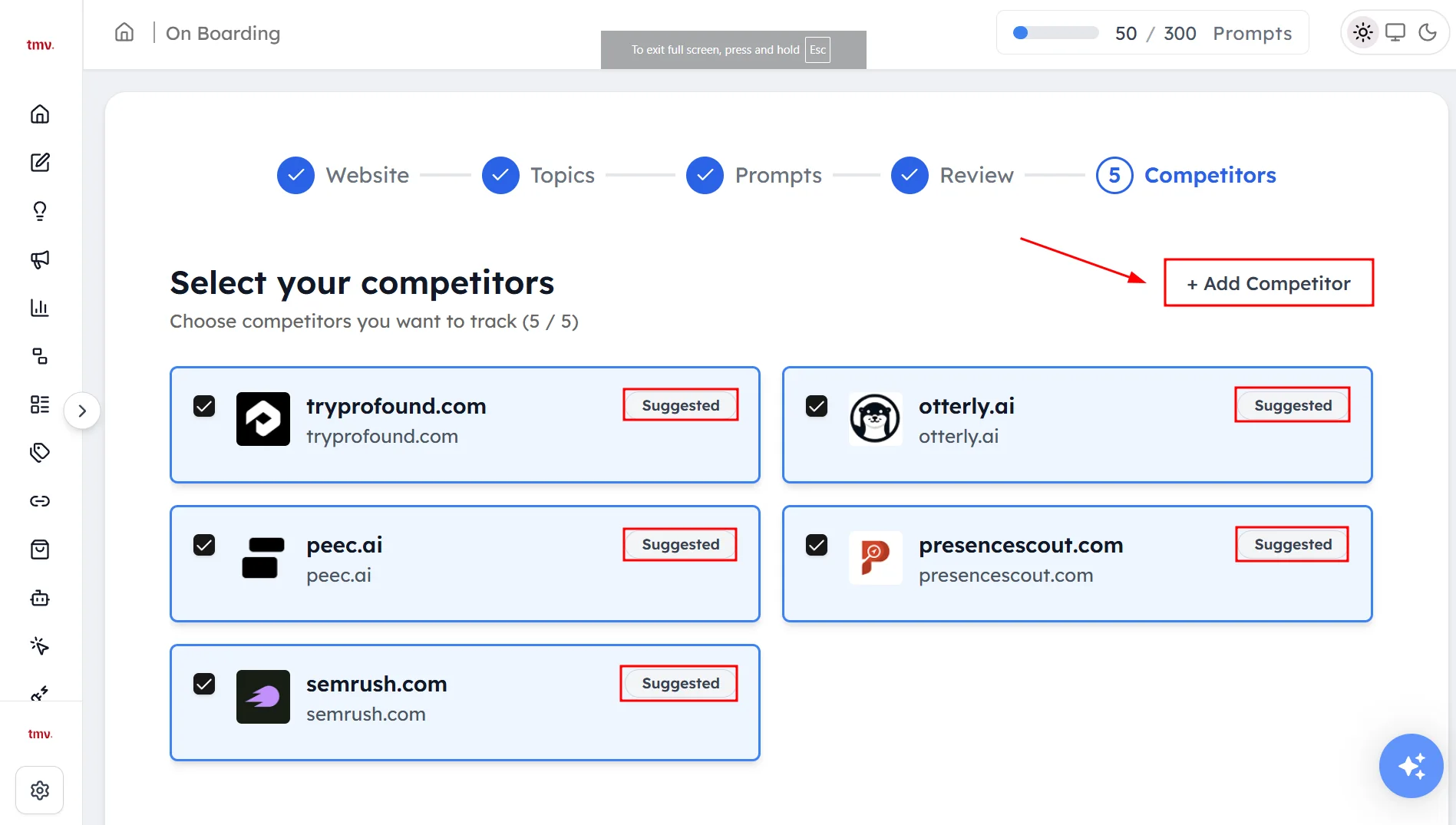
Step 3. Click Complete Setup#
What happens after setup#
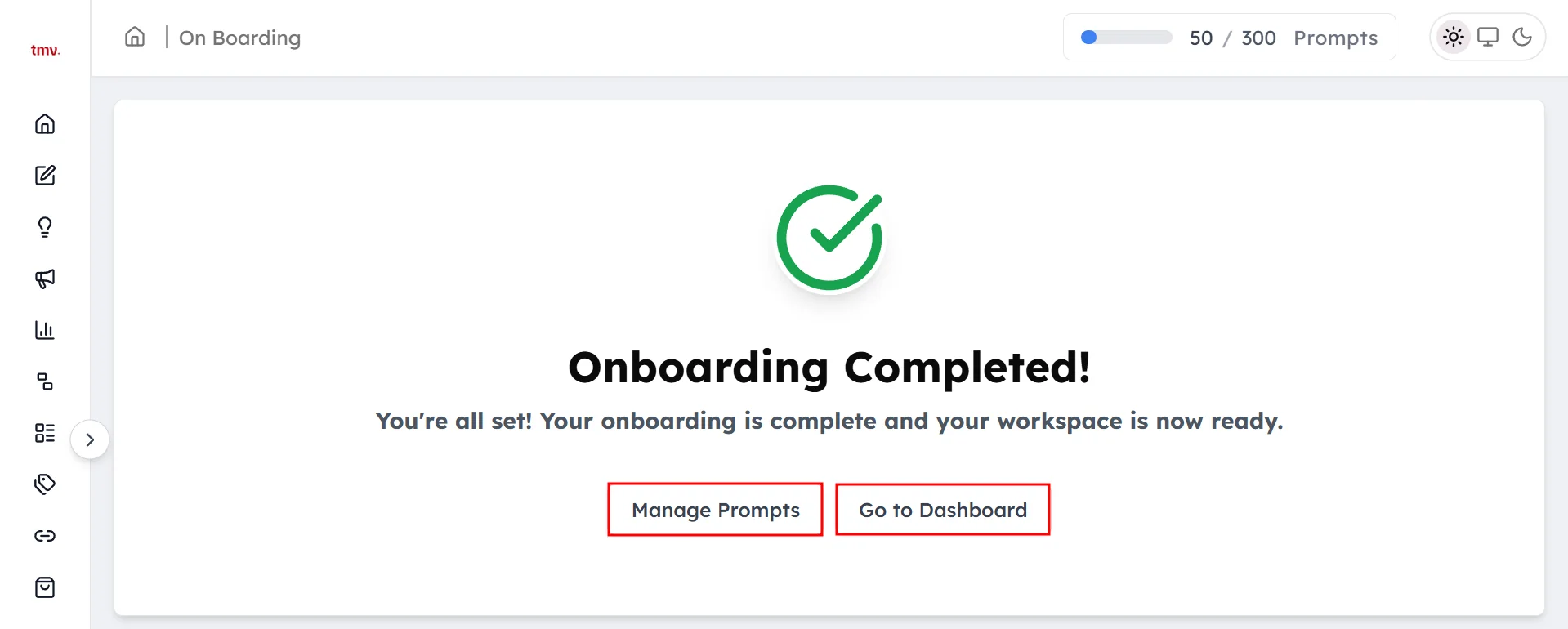
You'll see Onboarding Completed! when your workspace is ready. From here, you can:
- Click Go to Dashboard to see your results.
- Click Manage Prompts to edit your prompt list.
You can change anything from setup later. Edit prompts in Prompts, topics in Topics and competitors in Competitors. To change your website details, click the settings icon at the bottom of the sidebar and select Manage Website.
Frequently asked questions#
How do I add a website to Track My Visibility?
You add a website by clicking the website name at the bottom of the left sidebar and selecting Add Website. Track My Visibility then walks you through the five setup steps: Website, Topics, Prompts, Review and Competitors.
What are brand name variations?
Brand name variations are the different names AI models might use for your brand, such as your full name, short name, legal name, product names and common misspellings. Track My Visibility only counts a mention when an AI answer uses one of these variations.
Which AI models can I track during setup?
You can track Perplexity, ChatGPT, Gemini and Google AI Overviews. The number of AI models you can select depends on your plan.
Can I change my topics, prompts or competitors after setup?
Yes. You can edit prompts on the Prompts page, topics on the Topics page and competitors on the Competitors page at any time. Website details such as brand name variations are in Manage Website under the settings icon.
Why does my country setting matter?
Your country setting matters because AI models answer the same question differently in different markets. Prompts run as if a user in your selected country asked them, so choose the country where your buyers are.
Related articles
Last updated 3 Nov 2026
Can't find what you need?
Email support@trackmyvisibility.com with your website, what you were trying to do and what you saw. A screenshot helps.